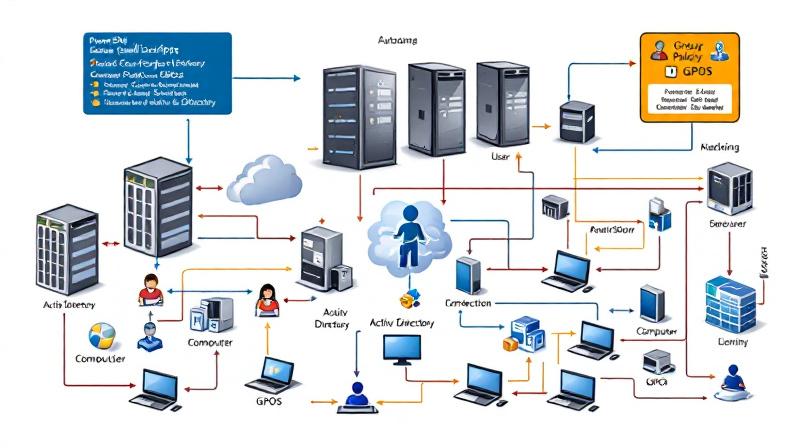
Automating Group Policy Object (GPO) tasks in Active Directory is critical for large organizations and IT administrators managing a high volume of policies. PowerShell provides enterprise-grade automation capabilities to create, modify, and deploy GPOs efficiently, reducing manual effort and minimizing errors. This guide dives deep into automating GPO management with PowerShell, showing step-by-step scripting techniques for both user and computer GPOs—all with hands-on examples.
Automating GPO Creation at Scale
Manually creating GPOs via the Group Policy Management Console (GPMC) is neither scalable nor practical when dealing with dozens or hundreds of required policies. PowerShell, via the GroupPolicy module, solves this challenge. With cmdlets like New-GPO and New-GPLink, administrators can script the creation, linking, and basic configuration of GPOs rapidly.
Suppose your organization deploys a standard security baseline for different departments. Instead of clicking through the GUI repeatedly, you could run:
|
1 2 3 4 5 6 |
$departments = @("HR","Finance","IT") foreach ($dept in $departments) { $gpoName = "$dept Security Settings" New-GPO -Name $gpoName New-GPLink -Name $gpoName -Target "OU=$dept,DC=corp,DC=local" } |
This script creates a GPO per department and links each to its corresponding organizational unit (OU). By substituting department names or OUs, you can adapt this logic to almost any segmentation scheme.
Bulk Configuring User GPO Settings with PowerShell
User GPOs commonly set policies affecting logon experience, desktop personalization, and security controls. Automating the configuration of these settings ensures consistency.
While the Set-GPRegistryValue cmdlet is key for registry-based GPO preferences, sometimes high-level cmdlets like Set-GPInheritance or specialized modules are needed. Here’s an example: disabling Control Panel access for all users within a given GPO.
|
1 2 3 4 5 6 |
# Create and link GPO $gpo = New-GPO -Name "Disable Control Panel" New-GPLink -Name "Disable Control Panel" -Target "OU=AllUsers,DC=corp,DC=local" # Set the registry value Set-GPRegistryValue -Name "Disable Control Panel" -Key "HKCUSoftwareMicrosoftWindowsCurrentVersionPoliciesExplorer" -ValueName "NoControlPanel" -Type DWord -Value 1 |
This snippet creates a GPO and configures the registry setting needed to hide the Control Panel from users. Extending this, you can adjust multiple registry keys at once, import settings from a file, or even use templates for rapid policy deployment.
Automated Computer GPO Configuration: Enforcing Security Policies
Computer GPOs govern machine behavior—firewall settings, software deployment, or local account restrictions. Automating these saves enormous time, especially during mass onboarding or compliance initiatives.
To push a password policy across all computers in an OU:
|
1 2 3 4 5 6 |
# Create and link GPO $gpo = New-GPO -Name "Computer Password Policy" New-GPLink -Name "Computer Password Policy" -Target "OU=Workstations,DC=corp,DC=local" # Example: Set minimum password length Set-GPRegistryValue -Name "Computer Password Policy" -Key "HKLMSOFTWAREMicrosoftWindowsCurrentVersionPoliciesSystem" -ValueName "MinimumPasswordLength" -Type DWord -Value 12 |
Here, by manipulating computer-side registry values, you’re standardizing password settings across every device the GPO applies to. For more advanced configurations, PowerShell scripts can import ADM/ADMX templates or work with policy backups to replicate entire configurations between environments.
Bulk Task Handling Scripts: Real-World Examples
For larger environments, handling GPO tasks in bulk is essential. PowerShell allows you to apply changes to many GPOs or OUs in a single operation. Here are some practical scripts to illustrate bulk management.
Example 1: Bulk Creation and Linking of Multiple GPOs to Different OUs
Suppose you have a CSV file containing GPO names and their target OUs. You can automate creation and linking as follows:
|
1 2 3 4 5 6 7 8 |
Import-Csv "GPO_OU_Mapping.csv" | ForEach-Object { $gpoName = $_.GPOName $ouTarget = $_.OUTarget if (-not (Get-GPO -Name $gpoName -ErrorAction SilentlyContinue)) { New-GPO -Name $gpoName } New-GPLink -Name $gpoName -Target $ouTarget } |
A sample CSV file (GPO_OU_Mapping.csv):
|
1 2 3 |
GPOName,OUTarget "Workstation Lock Policy","OU=Workstations,DC=domain,DC=com" "Print Restrictions","OU=HR,DC=domain,DC=com" |
Example 2: Bulk Setting of Registry Values Across Multiple GPOs
If you need to enforce the same registry setting in several GPOs, for example, to disable command prompt access for all user GPOs:
|
1 2 3 4 |
$gpolist = @("HR User Policy", "Finance User Policy", "IT User Policy") foreach ($gpo in $gpolist) { Set-GPRegistryValue -Name $gpo -Key "HKCUSoftwarePoliciesMicrosoftWindowsSystem" -ValueName "DisableCMD" -Type DWord -Value 1 } |
This script updates each user GPO listed, ensuring consistency at scale.
Example 3: Backing Up All GPOs Before Bulk Modification
Before making bulk changes, it’s best practice to back up all existing GPOs:
|
1 2 |
$backupPath = "C:GPO_Backup_$(Get-Date -Format yyyyMMdd)" Backup-GPO -All -Path $backupPath |
This ensures you have a restore point if you need to rollback later.
Example 4: Mass Import of Settings Using Templates
If you have pre-configured GPO backups or starter GPOs, you can automate importing them to multiple domains or environments:
|
1 2 3 4 5 6 |
$sourcePath = "C:PreConfiguredGPOs" $targetGPOs = @("Branch1 Security", "Branch2 Security") foreach ($gpoName in $targetGPOs) { Import-GPO -Path $sourcePath -TargetName $gpoName } |
This is helpful for multisite organizations needing identical policies across locations.
Configuring Multiple GPO Settings from Data
For true automation at scale, PowerShell can import settings from CSV, XML, or JSON files. This is invaluable when onboarding new sites or rolling out policy updates organization-wide.
Consider a case where required user policies are stored in a CSV file:
|
1 2 3 |
Import-Csv ".UserPolicies.csv" | ForEach-Object { Set-GPRegistryValue -Name $_.GPOName -Key $_.KeyPath -ValueName $_.ValueName -Type $_.Type -Value $_.Value } |
A CSV like this:
|
1 2 3 |
GPOName,KeyPath,ValueName,Type,Value "User Security","HKCUSoftwarePoliciesCompanySecurity","ScreenSaverTimeout","DWord","900" "User Security","HKCUSoftwarePoliciesCompanySecurity","RequireStrongPassword","DWord","1" |
Enables quick update of multiple settings across multiple GPOs, ensuring uniformity and compliance.
Orchestrating Advanced GPO Automation: Backups, Imports, and Version Control
To empower rollback, auditing, or disaster recovery, PowerShell can automatically backup and restore GPOs. This is especially useful before large-scale changes.
|
1 2 3 4 5 |
# Backup all GPOs Backup-GPO -All -Path "C:GPO_Backups" # Import a GPO into a new domain or environment Import-GPO -BackupId $backupID -Path "C:GPO_Backups" -TargetName "Restored Policy" |
By scripting GPO backups, administrators can maintain safe states and document all changes. This also eliminates accidental data loss in dynamic IT environments.
Summary: The Future-Proof Approach to GPO Management
PowerShell-based automation transforms GPO management from a tedious manual process into a streamlined, error-resistant workflow. By leveraging bulk creation, registry value automation, and import/export strategies, organizations achieve consistency, compliance, and scalability in Active Directory environments. Ongoing investment in PowerShell skills ensures IT teams remain agile in the face of changing business demands.
 Licensed under CC BY-ND 4.0 International

What’s New in Microsoft Defender: AI Triage, Predictive Hardening, and Call Monitoring — What IT Teams Should Know
Microsoft used RSA 2026 to roll out a wave of Defender enhancements…

Automate Your Claude Code Workflow: A Practical Guide to Scheduled Tasks
A little automation goes a long way. If you spend any time…

Microsoft Plans to Disable Hands‑Free Automated Installation for Windows 11 and Server 2025 After Critical RCE Flaw
Microsoft has announced a hardening plan for Windows Deployment Services (WDS) after…

Microsoft Active Directory Domain Services Vulnerability (CVE-2026-25177) — What Administrators Need to Know
In early March 2026, Microsoft released an important security update addressing a…