
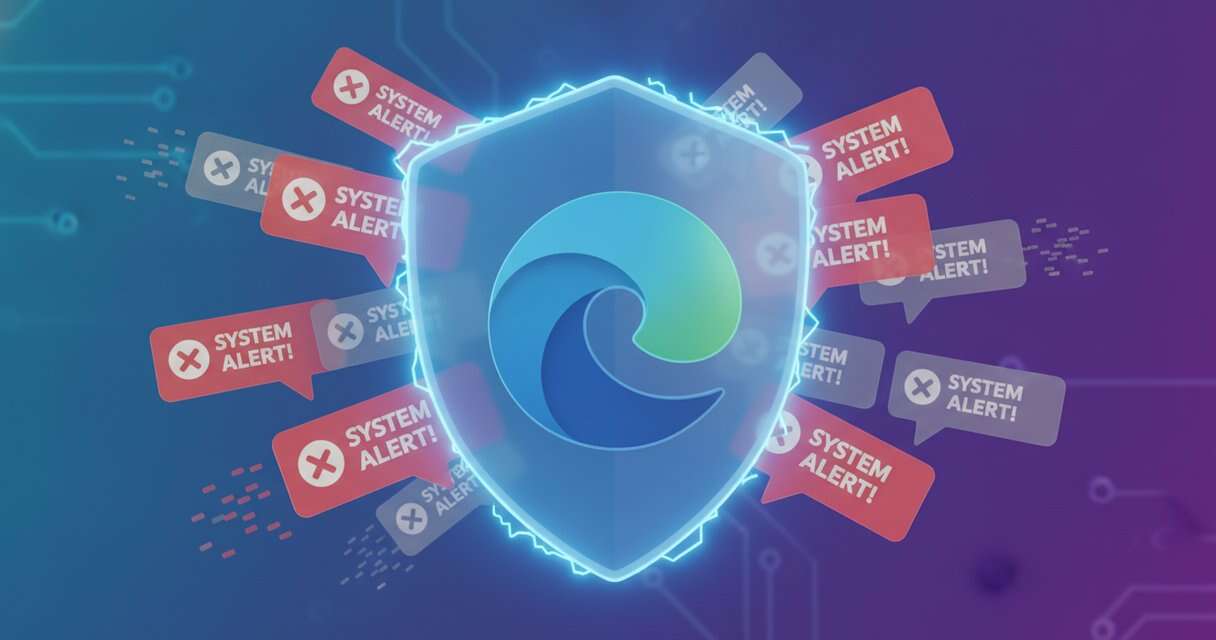
Microsoft Edge now automatically disables notifications from websites that send users to detected scam pages, closing one route used for fake virus warnings. The change reached Edge 156, according to Microsoft’s November 2 disclosure, and it works with Microsoft Defender SmartScreen and Scareware blocker detections.
The browser can now stop further notifications from the site that led a user to a scam page. Microsoft said closing the deceptive page alone does not necessarily stop notifications that were already allowed.
How the browser blocks repeat scams
The malicious flow begins with a permission prompt. A misleading site can persuade someone to click “Allow,” sometimes by claiming the action is needed to prove the visitor is not a robot.
That permission gives the site repeated access to the notification channel, so it can keep sending false security messages after the page itself is gone. The alerts use antivirus language to create urgency, and a notification that says a computer is infected can look convincing even when it is only part of a scam.
Edge’s response depends on a detection chain. When Microsoft Defender SmartScreen or Scareware blocker identifies a scam that arrived through a notification, the browser disables notifications from the site that sent it. Microsoft’s description ties this to detected scams, not to every deceptive website before the user interacts with it.
On the next browser launch, an information bar explains what happened. Users can view blocked sites in Edge Settings and restore notifications if they think the browser acted on the wrong site.
Reports behind the protection
Researchers on Windows Blogs, Rob Franco and Lu Huang, said they saw the abuse while reviewing user reports submitted through Scareware blocker. Their findings describe a recurring delivery method, not a newly named malware family, with notifications repeatedly bringing users back to pages that Edge’s security tools identified as scams.
Microsoft says Scareware blocker directly protects tens of thousands of users every day against new scams. During the preview, each report also helped protect another 50 users through wider SmartScreen coverage.
Edge also includes a “Block and report” option in notification permission requests. Users can open the menu next to “Block” and report the requesting site before allowing notifications.
Those reports can include the URL and a screenshot of the page that tried to convince the visitor to enable notifications. That gives SmartScreen evidence earlier in the process, before a harmful notification reaches other people.
Manual controls and related scam tactics
Users can also stop unwanted messages without relying on automatic detection. Microsoft advises opening the “…” menu on a website notification and disabling future notifications from that site.
The company warns that other buttons inside a fake alert may only open more pop-up windows. Interacting with those repair buttons can keep the scam going.
The same broader scam environment includes browser-locking CypherLoc kit campaigns, which use full-screen warnings, hidden controls, and alarming sounds to push fake Microsoft support calls. Those techniques work differently from notification permissions, but both are designed to make a browser message look like a system emergency.
Microsoft says its broader approach connects browser-side detection, user reports, and cloud reputation so one observation can help protect more users. Blocking the destination cuts off one encounter, while removing the sender’s notification access limits future attempts from that source.
 Licensed under CC BY-ND 4.0 International