
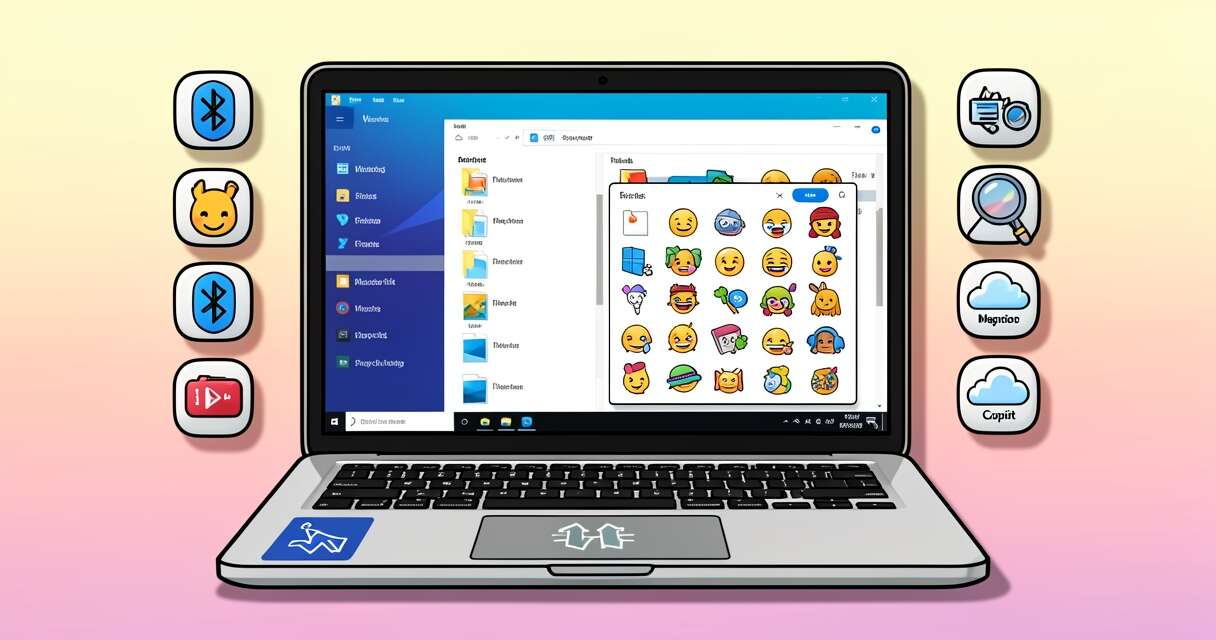
Microsoft has released KB5127653, the preview update for Windows 11 version 26H1 (OS Build 28000.3365), and it’s packed with a broad mix of quality-of-life refinements, new features, and bug fixes. Some changes overlap with recent preview releases for 25H2 and 26H2 (notably KB5127936), but KB5127653 also contains several enhancements unique to 26H1. Keep in mind that Windows 11 version 26H1 is currently available only on select new devices with supported silicon. The update’s changelog is split into Gradual Rollout items (staggered delivery) and Normal Rollout items (delivered to all devices once updated).
Gradual Rollout highlights
File Explorer
- The preview pane’s handling of web-downloaded files is adjusted: For HTML files, a new Preview anyway button lets you acknowledge the warning and preview the file. Non-HTML files, such as PDFs, are now previewed automatically.
- File Explorer Home now preserves the state of sections (expanded or collapsed), so you can pick up where you left off.
- This update improves the reliability of thumbnail previews for cloud files in the Details pane. The pane has also been reorganized, so file properties are easier to find and review at a glance.
- The update addresses an issue that could clear the address bar contents when entering edit mode by clicking near the right side of the address bar.
Emoji and Widgets
- This update adds support for Emoji 17.0, including new emoji such as distorted face, fight cloud, and hairy creature. To insert them, press the Windows key + Period (.) to open the emoji panel.
- This update also refines the design of several existing emoji for better consistency across platforms, including saluting face, face with peeking eye, goose, lotus, and kissing cat.
- New! This update introduces the Tips widget, which provides short, helpful guidance about Windows features. To add it to your Widgets board, open the board, select Add widgets, and then choose Tips. To add it to your lock screen, go to Settings > Personalization > Lock screen and add Tips to your lock screen widgets.
Personalization and backgrounds
- This update includes a variety of improvements to desktop background experiences.
- This update improves the reliability of the Personalization > Background page in Settings.
- This update adds support for using DIB image files as desktop backgrounds.
- This update improves reliability of desktop slideshow transitions on newly created accounts.
- This update improves resolution of previews when selecting a desktop background in Personalization > Background.
- This update improves desktop background preview display in Settings for users with portrait mode monitors.
- This update improves reliability of processing desktop wallpaper changes when they happen in quick succession.
- This update adds support for using slideshow wallpapers with multiple desktops, so that it won’t automatically switch you back to Picture.
Bluetooth and audio reliability
- During voice calls, the Windows shell volume flyout now appears when adjusting the volume of a Bluetooth Classic Audio accessory via the volume controls on the accessory, providing visual feedback of the new volume level.
- This update improves the accuracy of the connection state displayed by Windows for accessories that have disconnected from the PC.
- This update improves stability of the Bluetooth and devices page in Settings when managing Bluetooth and audio devices.
- This update resolves an issue where the Bluetooth radio could be turned off, but the state of the radio control toggle in the Bluetooth and devices page in Settings shows as on.
- This update improves Bluetooth audio stability and compatibility.
- This update improves microphone compatibility with certain Bluetooth Classic audio accessories.
- This update resolves an issue that could result in a crash (error code 0x139) while streaming Bluetooth audio.
- This update improves reliability and performance with LE Audio accessories.
- This update improves the reliability of shared audio.
Accessibility and Magnifier
- New! This update introduces Open apps maximized, an accessibility setting that automatically maximizes app windows as they open. It removes a bit of everyday friction whether you use a screen reader or magnification, work in tablet mode, or simply prefer a consistent, full-screen workspace. To turn it on, go to Settings > Accessibility > Visual effects and turn on Open apps maximized.
- This update improves navigation of the Bluetooth quick settings page when using keyboard input, gamepad input, or Narrator.
Magnifier
- New! This update brings a modernized visual refresh to the Magnifier taskbar.
- Updated icons. Magnifier’s toolbar icons align with Windows 11 visual design, giving the tool a cleaner, more modernized feel.
- Refined spacing and padding. The padding is adjusted with spacing across the toolbar for a more polished, consistent layout.
- Views, zoom controls, keyboard shortcuts, and Read Aloud all behave exactly as they did in earlier versions.
Settings, touchpad and Copilot key
Settings
- This update improves the reliability of Settings when interacting with the contents of the Settings > Bluetooth & Devices > Printers & Scanners page.
- This update updates Settings > Apps > Installed apps to show the version number at the top level for packaged apps, as it already does for other apps.
- This update improves the time picker control in Settings so that it reflects your preferred time format when you switch between 12-hour and 24-hour. This applies in places such as setting active hours and scheduling night light.
- This update improves persistence of the Allow multiple apps to use camera at the same time option in Settings > Bluetooth & Devices > Camera settings.
Touchpad
- New! Additional gesture controls for precision touchpads are available in Settings > Bluetooth & devices > Touchpad:
- Single-finger scrolling — Scroll vertically with one finger starting from the left or right side of the touchpad.
- Automatic scrolling — Keep scrolling without lifting your fingers by moving them near the edge of your touchpad while scrolling.
Copilot key
- New! This update introduces a new Windows 11 setting that lets you remap the Copilot key to function as the Right Ctrl or Context Menu key, helping preserve familiar keyboard shortcuts and accessibility workflows. For more information, see Understand updates to the Copilot key on Windows devices.
Device protection, recovery, and backups
Administrator protection
- New! This update introduces a new way to turn on Administrator protection from Windows Security > Account protection. IT admins have been able to enable Administrator protection since it was first introduced in the KB5120998. This new experience is beginning a gradual rollout and will roll out progressively over the coming months, so it might not be available on all devices right away. When it becomes available, turn on the Administrator protection toggle, and then restart your device. For more information, see Administrator protection.
Windows Recovery (WinRE)
- New! This update enables WinRE to automatically reuse eligible Wi-Fi profiles already saved in Windows, including supported certificate-based networks. Devices can now get online automatically during recovery scenarios such as quick machine recovery or cloud rebuild, without preconfiguring Wi-Fi credentials in WinRE. This capability is on by default, and IT admins can disable it. For more information, see Windows Recovery Environment (Windows RE).
- New! This update adds recovery remote management plug-in for extending WinRE management capabilities for MDM providers. For more information, see Recovery Remote Management Overview.
Windows settings backup and restore
- New! This update introduces a Restore Summary that appears after you restore a backup profile to a new device. The summary gives a clear overview of what was successfully restored, including Windows settings and the list of Microsoft Store apps. This improves transparency during device transitions and helps you validate your restore results and continue setup on your new device with confidence.
- For more information see, Windows settings backup and restore overview.
Other Gradual Rollout changes
- Fonts: Ebrima gains Garay and Beria Erfe script support and Adlam glyph refinements.
- Power and battery: fixes for scenarios where plugged-in laptops incorrectly detected a transition to battery.
- DPAPI: a warning is added before prompt-based protect and unprotect operations announcing that the prompt-based experience will be retired in April 2027; guidance is provided to migrate away from prompt-based protected data.
- Kiosk mode: certain Windows key shortcuts (Win+Tab; Win+A and Win+C in single app kiosk mode) are disabled when using restricted UX or single app kiosk modes.
Normal Rollout highlights
Microsoft Edge and app management
- Accelerated App Launch for Microsoft Edge improves launch speed and consistency—especially when the device is busy—by streamlining how Windows launches Edge when it’s already running. This capability is available on Windows 11, version 25H2, 26H2, and 26H1 and requires Microsoft Edge version 150 or later.
- Policy-based in-box app removal now supports multi-session environments for Enterprise and Education.
Fixes and reliability improvements
- Remote Desktop: fixed an issue preventing non-admin users from connecting to devices with Administrator protection enabled (error 0xC000000D). Also, an Intune configuration issue for “Specify thumbprints of certificates representing trusted.rdp publishers” is addressed.
- Windows PowerShell: version 5.1 is added to naming for PowerShell and PowerShell ISE; some Start menu shortcuts may keep older names on existing devices.
- BitLocker: improved pre-boot PIN retry handling to reduce unintended TPM lockouts.
- Always On VPN: fixed connections that could remain stuck in Connecting or show “The specified port is already in use” after the September security update when protocol fallback or automatic protocol selection was configured.
- Time and date: permanent Daylight Saving Time support is enabled for British Columbia and Alberta starting November 2026, and a new Manitoba Standard Time (UTC−05:00) is added.
- Application Control: addressed an issue that could prevent a device from starting after using the PS_UpdateAndCompareCIPolicy method.
- Audio: fixed HDMI/DisplayPort audio playback failures on certain AMD graphics cards.
- Certificates: fixed an issue where TPM attestation AIK certificate enrollment could hang when a non‑Microsoft CNG provider reported malformed data.
- Windows Subsystem for Linux (WSL): fixed nested virtualization availability on WSL2 for devices with AMD processors.
What this means for users and IT admins
KB5127653 is a broad quality update that smooths many everyday scenarios—explorer previews, emoji, widgets, personalization, Bluetooth and audio stability, accessibility improvements, and touchpad gestures—while also addressing several enterprise and recovery-focused issues (Administrator protection, WinRE network reuse, BitLocker, VPN, and policy-driven app management). Because some features are on a gradual rollout, not every device will see everything immediately. IT admins should note the fixes for Remote Desktop, BitLocker, VPN, and device recovery when planning deployments, and users on eligible 26H1 hardware will see useful UI and reliability improvements over time.
 Licensed under CC BY-ND 4.0 International