If you’ve spent any time in Windows System Administration over the last decade, I can almost guarantee you’ve reached for PsExec at least once. Originally from Sysinternals and now officially part of Microsoft, PsExec is one of those deceptively simple tools that has quietly saved thousands of IT professionals from hours of sheer agony. A single executable, zero installation, no messy dependencies. You drop it on a machine, and it just works.
If you have never had the pleasure, here is the short version: PsExec lets you execute processes on remote systems interactively, exactly as if you were sitting right in front of them. You can run commands on a remote server, push a script across a fleet of machines, and redirect input and output over the network—all without needing to spin up a full remote desktop session. It works beautifully for local troubleshooting too, allowing you to run processes under different user accounts or with specific privileges in ways that Windows simply doesn’t expose through a right-click.
The Trick That Started Everything
But here is the specific feature that genuinely stopped me in my tracks the first time I discovered it:
PsExec can run any application as the SYSTEM account—directly on your interactive desktop—as long as you call it from an elevated session.
# Launch an interactive PowerShell session as SYSTEM
psexec -i -s powershell.exe
That is it. One line. A PowerShell window pops up on your screen, and if you type whoami inside it, you get back:
# The ultimate privilege confirmation
nt authority\system
I remember just staring at that for a moment. SYSTEM. On the interactive desktop. Visible, interactive, and fully usable. Not some background service process hopelessly hidden away in Session 0. An actual, tangible window right in front of me, running with the absolute highest local privilege the Windows OS possesses.
If you have ever had to troubleshoot why a scheduled task behaves differently from your own session, debug a service that only misbehaves under the SYSTEM context, test registry permissions, or validate that a software deployment will actually work in production—this single trick is invaluable. It became a permanent fixture in my toolkit almost immediately.
Yes, Solutions Already Exist
Before I go any further, let me be entirely upfront: this is not a problem nobody has ever solved. A quick search turns up several existing, highly capable options.
- PowerRunAsSystem by PhrozenIO is a Gallery script that spawns interactive SYSTEM processes using native APIs.
- Invoke-CommandAs by Marc Kellerman cleverly uses the Task Scheduler to run script blocks as SYSTEM. It’s incredibly solid for headless automation, though it doesn’t give you a visible, interactive window.
- Invoke-TokenManipulation from PowerSploit also uses token-based process creation, but it lives inside a penetration testing framework, bringing all that heavy security context (and antivirus flagging) along with it.
So, the tools already exist. I could have easily downloaded one, solved my immediate problem, and moved on with my day in ten minutes.
But honestly? That was never really the point.
The Personal Part
I have been writing PowerShell for years. I started the exact same way most people do: blindly copying scripts from forums, tweaking variables just enough to get the job done, and gradually building an understanding of the language by being—if I am completely honest with myself—productively lazy. Why do a tedious task manually ten times when a script can do it perfectly once?
But the more I used PowerShell, the more its true depth revealed itself. Add-Type let me write inline C# and call .NET classes directly from my scripts. P/Invoke allowed me to reach deep into native Windows DLLs and trigger Win32 APIs without ever leaving the comforting blue prompt. Every time I thought I understood the boundaries of what the language could do, another door swung open.
Eventually, PowerShell stopped feeling like just a scripting language. It felt like a Swiss Army knife that had a backdoor into the entire Windows operating system built right into the handle.
And that is exactly when the question formed in my head. PsExec isn’t magic. It is just a standard executable calling publicly documented Windows APIs: OpenProcess, DuplicateTokenEx, CreateProcessWithTokenW. If PowerShell can natively call Win32 APIs, why couldn’t I just do exactly what PsExec does, entirely in a script, with zero executables?
I filed that thought away. But it kept stubbornly surfacing whenever PsExec would have been perfect but was strictly forbidden—in locked-down managed environments, on hardened servers, or behind application control policies that aggressively flagged third-party binaries. The question wouldn’t let me go.
So, finally, I sat down and actually tried to build it.
The Walls
What followed was easily one of the most educational experiences I have ever had with Windows internals. Educational in the specific, painful sense that I learned an enormous amount about the Windows security model mostly by colliding with it, repeatedly, at high speed.
Wall One. I decided to duplicate a token from winlogon.exe (which reliably runs as SYSTEM) and pass it to CreateProcessAsUser. It seemed perfectly logical.
Result: Error 1314. ERROR_PRIVILEGE_NOT_HELD. This happened even while running as an Administrator, holding a token lifted straight from a SYSTEM process. CreateProcessAsUser requires SeTcbPrivilege when launching across session boundaries. Administrator tokens simply do not carry this privilege. It isn’t disabled or restricted; it is physically absent.
Wall Two. Fine, I thought. I’ll just enable it first using AdjustTokenPrivileges.
Result: Error 1300. ERROR_NOT_ALL_ASSIGNED. You cannot enable a privilege that doesn’t exist in the token to begin with.
Wall Three. I tried impersonating SYSTEM using the winlogon token before making the call. Thread-level impersonation temporarily gives your current thread SYSTEM context. Some things actually worked inside that brief window! But CreateProcessAsUser still slapped me with a 1314. Impersonation is thread-level, but CreateProcessAsUser checks the process-level token. The thread whispered “SYSTEM,” but the process shouted “Admin.” Not good enough.
Each wall sent me crawling back to the documentation. And eventually, the documentation told me a hard truth I had been ignoring:
SeTcbPrivilege is never given to administrators by design. The only process that holds it by default is one running as genuine SYSTEM—meaning a core Windows Service or the kernel itself. PsExec doesn’t use API magic; it installs a tiny, temporary service on the fly. That service starts with a true SYSTEM token and spawns your process for you. A real service doing the dirty work on your behalf.
That realisation entirely changed my approach. I had been stubbornly asking: “How do I make an Admin token do SYSTEM things?” The correct question was actually: “Do I even need CreateProcessAsUser at all, or is there a completely different API that skips the SeTcbPrivilege requirement?”
And here, I have to mention something that has genuinely changed how I engineer solutions today. We are operating in a different era now. A few years ago, arriving at that reframed question would have cost me hours of scanning archaic Win32 MSDN archives and deciphering decade-old forum posts by security researchers. AI doesn’t do the thinking for you, but when you describe a highly specific roadblock conversationally, it points you toward the correct API surface instantly. The understanding was still mine to build, but the time between hitting the wall and finding the door was radically compressed.
The Piece That Made It Click
The breakthrough came when I stopped trying to force CreateProcessAsUser to work and found the API built explicitly for this exact scenario:
CreateProcessWithTokenW
Added back in Windows Vista, it is specifically designed for situations where you hold a token from another context and want to launch a process with it, but you are not running as SYSTEM yourself. The only privilege it demands is SeImpersonatePrivilege. And guess what? Elevated Admin tokens hold that privilege natively. No dirty tricks required.
The final, victorious sequence looked like this:
- Duplicate the winlogon token as an impersonation token.
- Impersonate SYSTEM on the current thread—just long enough for the next move.
- Duplicate winlogon again as a primary token, then call
SetTokenInformationto reassign its session ID to the active console session (this step needsSeTcbPrivilege, which is why we are actively impersonating SYSTEM here). - Revert the impersonation, dropping cleanly back to our Admin context.
- Call
CreateProcessWithTokenWwith our beautifully prepared primary token. It succeeds because Admin holdsSeImpersonatePrivilege.
The window opened.
nt authority\system
That was a genuinely incredible moment. Not because the text on the screen was a surprise, but because the path to get there was littered with so many dead ends. Seeing it finally execute meant something. I had actually built it.
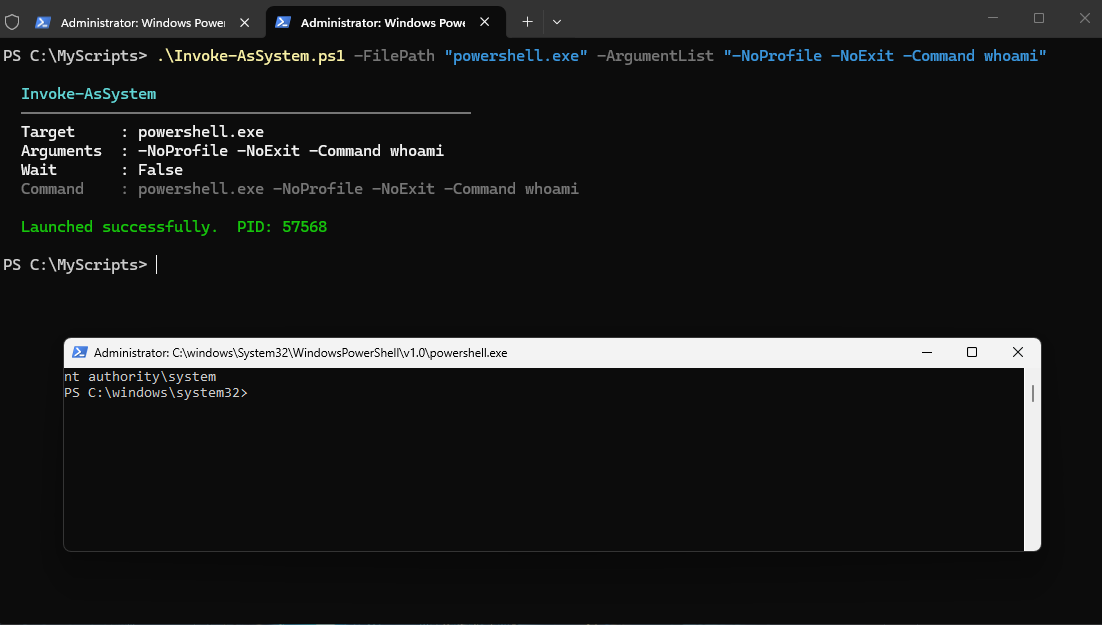
The complete script is available bellow.
<#
.SYNOPSIS
    Launches a process in the active interactive user session under the
    SYSTEM account identity, without requiring any third-party tools.

.DESCRIPTION
    This script replicates the core behaviour of PsExec -i -s using native
    Windows APIs via P/Invoke in inline C#. It is intended to be used from
    an elevated (Administrator) PowerShell session.

    BACKGROUND
    ----------
    Running a process as SYSTEM on the interactive desktop is non-trivial
    because SYSTEM operates in Session 0, which is isolated from the user's
    interactive desktop session. Simply duplicating a SYSTEM token and calling
    CreateProcessAsUser is insufficient because that API requires the caller
    to hold SeTcbPrivilege ("Act as part of the operating system"), which is
    present only in a genuine SYSTEM process token — not in an elevated Admin
    token.

    PsExec solves this by installing a temporary Windows Service. Services
    start with a genuine SYSTEM process token and therefore hold all SYSTEM
    privileges natively. This script achieves the same result without a
    service by using a different API: CreateProcessWithTokenW.

    HOW IT WORKS
    ------------
    1.  Open winlogon.exe
        winlogon.exe always runs as SYSTEM in the interactive session. Its
        token is opened and duplicated. This requires only
        PROCESS_QUERY_INFORMATION access, which an Administrator can obtain.

    2.  Impersonate SYSTEM (thread-level, temporary)
        The duplicated winlogon token is used to impersonate SYSTEM on the
        current thread. This is required only to call SetTokenInformation,
        which needs SeTcbPrivilege to modify the session ID of a token.
        Impersonation is reverted immediately after.

    3.  Set the session ID on the primary token
        The SYSTEM primary token (duplicated from winlogon) is associated
        with Session 0 by default. SetTokenInformation is called to reassign
        it to the active console session (the user's interactive desktop
        session). This call is made while impersonating SYSTEM, providing
        the necessary SeTcbPrivilege.

    4.  Revert impersonation
        RevertToSelf returns the thread to the original Admin identity.
        All remaining operations execute under the Admin token.

    5.  CreateProcessWithTokenW
        This API launches the target process using the prepared SYSTEM token.
        Unlike CreateProcessAsUser, CreateProcessWithTokenW requires only
        SeImpersonatePrivilege, which is present in all elevated Admin tokens.
        The process is launched on winsta0\default (the interactive desktop),
        visible to the logged-on user, and runs with the SYSTEM identity.

    REQUIREMENTS
    ------------
    - Must be run as Administrator. If not, the script prompts to relaunch elevated.
    - A user must be logged on interactively (console session must exist).
    - The target executable must be accessible from the SYSTEM context.

    PRIVILEGE SUMMARY
    -----------------
    SetTokenInformation  : requires SeTcbPrivilege  -> obtained via impersonation
    CreateProcessWithTokenW : requires SeImpersonatePrivilege -> Admin has this natively

.PARAMETER FilePath
    The path to the executable to launch. If the path contains spaces it will
    be quoted automatically. Examples:
        powershell.exe
        C:\Windows\System32\cmd.exe
        "C:\Program Files\MyApp\MyApp.exe"

.PARAMETER ArgumentList
    Optional string of arguments to pass to the executable. The full command
    line passed to the process will be: FilePath ArgumentList

.PARAMETER Wait
    If specified, the script blocks until the launched process exits, then
    reports the exit code. The script exits with the same code as the process.

.INPUTS
    None. This script does not accept pipeline input.

.OUTPUTS
    None. Process output appears in the launched window.

.EXAMPLE
    .\Invoke-AsSystem.ps1 -FilePath "powershell.exe"

    Opens an interactive PowerShell window running as NT AUTHORITY\SYSTEM
    on the current user's desktop.

.EXAMPLE
    .\Invoke-AsSystem.ps1 -FilePath "powershell.exe" -ArgumentList "-NoProfile -NoExit -Command whoami"

    Opens a PowerShell window that runs whoami and stays open. The output
    will show: nt authority\system

.EXAMPLE
    .\Invoke-AsSystem.ps1 -FilePath "cmd.exe" -Wait

    Opens a command prompt as SYSTEM and waits for it to close before
    returning control to the calling script.

.EXAMPLE
    .\Invoke-AsSystem.ps1 -FilePath "C:\Tools\MyDiag.exe" -ArgumentList "/verbose /log C:\Logs\out.txt" -Wait

    Runs a diagnostic tool as SYSTEM, waits for completion, and returns
    the tool's exit code to the calling script.

.NOTES
    Author  : Saugata Datta
    Version : 1.0.0

    TESTED ON   : Windows 11 23H2, Windows Server 2022
    REQUIREMENT : PowerShell 5.1 or later, run as Administrator

    VERSION HISTORY
    ---------------
    1.0.0  Initial release. Uses CreateProcessWithTokenW to avoid the
           SeTcbPrivilege requirement of CreateProcessAsUser.

    TECHNICAL NOTES
    ---------------
    The inline C# type is named SystemLauncher_v6 and LaunchResult_v6.
    The version suffix prevents conflicts if this script is run multiple
    times in the same PowerShell session. Once a .NET type is compiled into
    a PowerShell session it cannot be unloaded — only a new session clears
    the type cache. If the C# code is modified, increment the version suffix
    to force recompilation in existing sessions.

    ERROR CODES
    -----------
    If the script fails with a Win32 error, common codes are:
        5    : Access denied - check Administrator rights
        1314 : Privilege not held - unexpected; verify winlogon.exe is accessible
        2    : File not found - verify FilePath is correct and accessible from SYSTEM
        1008 : An attempt was made to reference a token that does not exist -
               no interactive console session; a user must be logged on
#>

[CmdletBinding()]
param(
    [Parameter(
        Mandatory         = $true,
        HelpMessage       = "Path to the executable to launch as SYSTEM."
    )]
    [ValidateNotNullOrEmpty()]
    [string]$FilePath,

    [Parameter(
        Mandatory         = $false,
        HelpMessage       = "Optional arguments to pass to the executable."
    )]
    [string]$ArgumentList = "",

    [Parameter(
        Mandatory         = $false,
        HelpMessage       = "Wait for the launched process to exit before returning."
    )]
    [switch]$Wait
)

# ==============================================================================
# NATIVE API DECLARATIONS (P/Invoke)
# ==============================================================================
# The type is compiled once per session and cached. The version suffix in the
# type name prevents the "type already exists" error on repeated invocations
# within the same PowerShell session.
# ==============================================================================

if (-not ([Security.Principal.WindowsPrincipal][Security.Principal.WindowsIdentity]::GetCurrent()
         ).IsInRole([Security.Principal.WindowsBuiltInRole]::Administrator)) {

    Write-Host ""
    Write-Host "  This script must run as Administrator." -ForegroundColor Yellow
    Write-Host ""
    Write-Host "  Press any key to relaunch as Administrator, or Ctrl+C to cancel." -ForegroundColor DarkGray
    $null = $Host.UI.RawUI.ReadKey("NoEcho,IncludeKeyDown")

    # Rebuild the original argument list to pass through to the elevated instance
    $argString = "-NoProfile -ExecutionPolicy Bypass -File `"$PSCommandPath`""
    if ($FilePath)      { $argString += " -FilePath `"$FilePath`"" }
    if ($ArgumentList)  { $argString += " -ArgumentList `"$ArgumentList`"" }
    if ($Wait)          { $argString += " -Wait" }

    Start-Process powershell.exe -ArgumentList $argString -Verb RunAs
    exit
}

if (-not ([System.Management.Automation.PSTypeName]'SystemLauncher_v6').Type) {

    Add-Type -TypeDefinition @'
using System;
using System.Diagnostics;
using System.Runtime.InteropServices;

// ── Holds the result of a successful process launch ───────────────────────────
public class LaunchResult_v6 {
    public uint   PID;

    public IntPtr ProcessHandle;
}

// ── Main launcher class ───────────────────────────────────────────────────────
public class SystemLauncher_v6 {

    // --------------------------------------------------------------------------
    // Win32 API Imports
    // --------------------------------------------------------------------------

    [DllImport("kernel32.dll", SetLastError = true)]
    static extern IntPtr OpenProcess(uint dwAccess, bool bInherit, uint dwPid);

    [DllImport("kernel32.dll", SetLastError = true)]
    static extern bool CloseHandle(IntPtr hObject);

    [DllImport("kernel32.dll")]
    static extern uint WTSGetActiveConsoleSessionId();

    [DllImport("kernel32.dll", SetLastError = true)]
    public static extern uint WaitForSingleObject(IntPtr hHandle, uint dwMilliseconds);

    [DllImport("kernel32.dll", SetLastError = true)]
    public static extern bool GetExitCodeProcess(IntPtr hProcess, out uint lpExitCode);

    [DllImport("advapi32.dll", SetLastError = true)]
    static extern bool OpenProcessToken(
        IntPtr  hProcessHandle,
        uint    dwDesiredAccess,
        out IntPtr phTokenHandle);

    [DllImport("advapi32.dll", SetLastError = true)]
    static extern bool DuplicateTokenEx(
        IntPtr  hExistingToken,
        uint    dwDesiredAccess,
        IntPtr  lpTokenAttributes,
        int     ImpersonationLevel,
        int     TokenType,
        out IntPtr phNewToken);

    [DllImport("advapi32.dll", SetLastError = true)]
    static extern bool ImpersonateLoggedOnUser(IntPtr hToken);

    [DllImport("advapi32.dll", SetLastError = true)]
    static extern bool RevertToSelf();

    [DllImport("advapi32.dll", SetLastError = true)]
    static extern bool SetTokenInformation(
        IntPtr  TokenHandle,
        int     TokenInformationClass,
        IntPtr  TokenInformation,
        uint    TokenInformationLength);

    [DllImport("userenv.dll", SetLastError = true)]
    static extern bool CreateEnvironmentBlock(
        out IntPtr lpEnvironment,
        IntPtr     hToken,
        bool       bInherit);

    [DllImport("userenv.dll", SetLastError = true)]
    static extern bool DestroyEnvironmentBlock(IntPtr lpEnvironment);

    [DllImport("advapi32.dll", SetLastError = true, CharSet = CharSet.Unicode)]
    static extern bool CreateProcessWithTokenW(
        IntPtr                hToken,
        uint                  dwLogonFlags,
        string                lpApplicationName,
        string                lpCommandLine,
        uint                  dwCreationFlags,
        IntPtr                lpEnvironment,
        string                lpCurrentDirectory,
        ref STARTUPINFO       lpStartupInfo,
        out PROCESS_INFORMATION lpProcessInformation);

    // --------------------------------------------------------------------------
    // Structures
    // --------------------------------------------------------------------------

    [StructLayout(LayoutKind.Sequential, CharSet = CharSet.Unicode)]
    struct STARTUPINFO {
        public int    cb;
        public string lpReserved;
        public string lpDesktop;     // "winsta0\\default" = interactive desktop
        public string lpTitle;
        public uint   dwX;
        public uint   dwY;
        public uint   dwXSize;
        public uint   dwYSize;
        public uint   dwXCountChars;
        public uint   dwYCountChars;
        public uint   dwFillAttribute;
        public uint   dwFlags;
        public short  wShowWindow;
        public short  cbReserved2;
        public IntPtr lpReserved2;
        public IntPtr hStdInput;
        public IntPtr hStdOutput;
        public IntPtr hStdError;
    }

    [StructLayout(LayoutKind.Sequential)]
    struct PROCESS_INFORMATION {
        public IntPtr hProcess;
        public IntPtr hThread;
        public uint   dwProcessId;
        public uint   dwThreadId;
    }

    // --------------------------------------------------------------------------
    // Access rights and constants
    // --------------------------------------------------------------------------

    const uint PROCESS_QUERY_INFORMATION  = 0x0400;
    const uint TOKEN_ALL_ACCESS           = 0xF01FF;
    const uint TOKEN_DUPLICATE            = 0x0002;
    const uint TOKEN_QUERY                = 0x0008;

    // ImpersonationLevel values for DuplicateTokenEx
    const int  SecurityImpersonation      = 2;

    // TokenType values for DuplicateTokenEx
    const int  TokenPrimary               = 1;   // for CreateProcessWithTokenW
    const int  TokenImpersonation         = 2;   // for ImpersonateLoggedOnUser

    // TokenInformationClass value for SetTokenInformation
    const int  TokenSessionId             = 12;

    // Process creation flags
    const uint CREATE_UNICODE_ENVIRONMENT = 0x00000400;
    const uint CREATE_NEW_CONSOLE         = 0x00000010;

    // WaitForSingleObject timeout
    const uint INFINITE                   = 0xFFFFFFFF;

    // Duplicates the winlogon.exe process token.
    // winlogon.exe always runs as SYSTEM in the interactive session.
    // tokenType: TokenPrimary (1) for process creation
    //            TokenImpersonation (2) for thread impersonation
    static IntPtr GetWinlogonToken(int tokenType) {
        foreach (var proc in Process.GetProcessesByName("winlogon")) {
            IntPtr procHandle = OpenProcess(
                PROCESS_QUERY_INFORMATION, false, (uint)proc.Id);
            if (procHandle == IntPtr.Zero) continue;

            try {
                IntPtr rawToken;
                if (!OpenProcessToken(
                        procHandle, TOKEN_DUPLICATE | TOKEN_QUERY, out rawToken))
                    continue;

                try {
                    IntPtr dupToken;
                    if (DuplicateTokenEx(rawToken, TOKEN_ALL_ACCESS, IntPtr.Zero,
                            SecurityImpersonation, tokenType, out dupToken))
                        return dupToken;
                }
                finally { CloseHandle(rawToken); }
            }
            finally { CloseHandle(procHandle); }
        }

        throw new Exception(
            "Could not duplicate the winlogon.exe process token. " +
            "Verify the script is running as Administrator.");
    }

    // Launches cmdLine as SYSTEM on the active interactive desktop.
    // Returns a LaunchResult_v6 with the PID and process handle.
    public static LaunchResult_v6 Launch(string cmdLine) {
        IntPtr impersonationToken = IntPtr.Zero;
        IntPtr primaryToken       = IntPtr.Zero;
        IntPtr environmentBlock   = IntPtr.Zero;

        try {

            // Phase 1: Impersonate SYSTEM to call SetTokenInformation.
            // SetTokenInformation requires SeTcbPrivilege, which only SYSTEM holds.
            // Impersonation is reverted immediately after the call.

            impersonationToken = GetWinlogonToken(TokenImpersonation);

            if (!ImpersonateLoggedOnUser(impersonationToken))
                throw new Exception(
                    "ImpersonateLoggedOnUser failed. Win32 error: " +
                    Marshal.GetLastWin32Error());

            try {
                // Determine which session the interactive user is in.
                uint sessionId = WTSGetActiveConsoleSessionId();
                if (sessionId == 0xFFFFFFFF)
                    throw new Exception(
                        "WTSGetActiveConsoleSessionId returned no active session. " +
                        "A user must be logged on interactively.");

                // Duplicate winlogon's token as a PRIMARY token.
                // This will be passed to CreateProcessWithTokenW.
                primaryToken = GetWinlogonToken(TokenPrimary);

                // Reassign the token from Session 0 to the active console session
                // so the process appears on the interactive desktop.
                // Requires SeTcbPrivilege — valid here because we are impersonating SYSTEM.
                IntPtr sessionBuffer = Marshal.AllocHGlobal(4);
                try {
                    Marshal.WriteInt32(sessionBuffer, (int)sessionId);
                    if (!SetTokenInformation(
                            primaryToken, TokenSessionId, sessionBuffer, 4))
                        throw new Exception(
                            "SetTokenInformation(TokenSessionId) failed. Win32 error: " +
                            Marshal.GetLastWin32Error());
                }
                finally { Marshal.FreeHGlobal(sessionBuffer); }
            }
            finally {
                // Revert impersonation — all subsequent calls run as Admin.
                RevertToSelf();
            }

            // Phase 2: Launch the process.
            // CreateProcessWithTokenW requires SeImpersonatePrivilege only —
            // Admin tokens hold this natively, no impersonation needed.

            bool envCreated = CreateEnvironmentBlock(
                out environmentBlock, primaryToken, false);
            if (!envCreated) environmentBlock = IntPtr.Zero;

            var startupInfo = new STARTUPINFO();
            startupInfo.cb        = Marshal.SizeOf(startupInfo);
            startupInfo.lpDesktop = "winsta0\\default";  // interactive desktop

            var processInfo = new PROCESS_INFORMATION();

            uint creationFlags = CREATE_UNICODE_ENVIRONMENT | CREATE_NEW_CONSOLE;

            bool launched = CreateProcessWithTokenW(
                primaryToken,
                0,                  // dwLogonFlags: no special logon behaviour
                null,               // lpApplicationName: derived from lpCommandLine
                cmdLine,
                creationFlags,
                envCreated ? environmentBlock : IntPtr.Zero,
                null,               // lpCurrentDirectory: inherit from caller
                ref startupInfo,
                out processInfo);

            if (!launched)
                throw new Exception(
                    "CreateProcessWithTokenW failed. Win32 error: " +
                    Marshal.GetLastWin32Error() +
                    " (2=FileNotFound, 5=AccessDenied, 1008=NoConsoleSession)");

            // The thread handle is not needed — close it immediately.
            CloseHandle(processInfo.hThread);

            return new LaunchResult_v6 {
                PID           = processInfo.dwProcessId,
                ProcessHandle = processInfo.hProcess
            };

        }
        finally {
            if (environmentBlock   != IntPtr.Zero) DestroyEnvironmentBlock(environmentBlock);
            if (primaryToken       != IntPtr.Zero) CloseHandle(primaryToken);
            if (impersonationToken != IntPtr.Zero) CloseHandle(impersonationToken);
        }
    }

    // Blocks until the process exits and returns its exit code.
    public static uint WaitForProcess(IntPtr processHandle) {
        WaitForSingleObject(processHandle, INFINITE);
        uint exitCode = 0;
        GetExitCodeProcess(processHandle, out exitCode);
        CloseHandle(processHandle);
        return exitCode;
    }
}
'@ -Language CSharp -ErrorAction Stop

} # end if type not already loaded

# ==============================================================================
# BUILD COMMAND LINE
# ==============================================================================

# Quote the executable path if it contains spaces to ensure correct parsing
# by CreateProcessWithTokenW.
$quotedPath = if ($FilePath -match '\s') { "`"$FilePath`"" } else { $FilePath }
$commandLine = if ($ArgumentList) { "$quotedPath $ArgumentList" } else { $quotedPath }

# ==============================================================================
# OUTPUT AND LAUNCH
# ==============================================================================

Write-Host ""
Write-Host "  Invoke-AsSystem" -ForegroundColor Cyan
Write-Host ("  {0}" -f ("─" * 50)) -ForegroundColor DarkGray
Write-Host ("  Target     : {0}" -f $FilePath) -ForegroundColor White
Write-Host ("  Arguments  : {0}" -f $(if ($ArgumentList) { $ArgumentList } else { "(none)" })) -ForegroundColor White
Write-Host ("  Wait       : {0}" -f $Wait) -ForegroundColor White
Write-Host ("  Command    : {0}" -f $commandLine) -ForegroundColor DarkGray
Write-Host ""

try {
    $launchResult = [SystemLauncher_v6]::Launch($commandLine)
    Write-Host ("  Launched successfully.  PID: {0}" -f $launchResult.PID) -ForegroundColor Green

    if ($Wait) {
        Write-Host "  Waiting for process to exit..." -ForegroundColor DarkGray
        $exitCode = [SystemLauncher_v6]::WaitForProcess($launchResult.ProcessHandle)
        $displayColor = if ($exitCode -eq 0) { "Green" } else { "Yellow" }
        Write-Host ("  Process exited.  Exit code: {0}" -f $exitCode) -ForegroundColor $displayColor

        # Safely cast uint exit code to int for the PowerShell exit statement.
        # Exit codes above 0x7FFFFFFF are negative when interpreted as signed int32.
        $safeExitCode = [int][Math]::Min([long]$exitCode, [long][int]::MaxValue)
        exit $safeExitCode
    }

} catch {
    Write-Host ("  ERROR: {0}" -f $_.Exception.Message) -ForegroundColor Red
    Write-Host ""
    Write-Host "  Troubleshooting:" -ForegroundColor DarkGray
    Write-Host "    - Confirm the script is running as Administrator." -ForegroundColor DarkGray
    Write-Host "    - Confirm a user is logged on interactively (console session must exist)." -ForegroundColor DarkGray
    Write-Host "    - Confirm the target executable path is correct and reachable from SYSTEM." -ForegroundColor DarkGray
    exit 1
}

Write-Host ""
What It Became
The final result is Invoke-AsSystem.ps1. It is a completely self-contained PowerShell script. No dependencies, no external binaries, no modules to install. You drop it on any machine with an elevated session, and it works. If you forget to elevate, it doesn’t just throw a wall of red text at you; it politely warns you and offers to relaunch itself with a UAC prompt. You just press a key, and it handles the rest.
# Open an interactive SYSTEM shell seamlessly
.\Invoke-AsSystem.ps1 -FilePath "powershell.exe"

# Run a specific command as SYSTEM and keep the window open to review the output
.\Invoke-AsSystem.ps1 -FilePath "powershell.exe" -ArgumentList "-NoProfile -NoExit -Command whoami"

# Execute a background tool as SYSTEM, wait for completion, and pass the exit code back
.\Invoke-AsSystem.ps1 -FilePath "C:\Tools\MyDiag.exe" -Wait
How It Compares
Now that you know how the sausage is made, here is how this script stacks up against the alternatives I mentioned earlier. This isn’t about declaring a “winner”—each tool has a specific philosophy and use case. It is about understanding your trade-offs.
| Feature | Invoke-AsSystem.ps1 | PowerRunAsSystem | Invoke-CommandAs | Invoke-TokenManipulation | PsExec -i -s |
|---|---|---|---|---|---|
| Interactive desktop window | Yes | Yes | No | Yes | Yes |
| No external tools or binaries | Yes | Yes | Yes | Yes | No |
| Single self-contained file | Yes | Yes | No (Module) | No (Framework) | No (Binary) |
| UAC re-launch prompt if not elevated | Yes | No | No | No | No |
| -Wait with exit code passthrough | Yes | No | Yes (as job) | No | Yes |
| Works without internet/Gallery access | Yes | Yes | No | No | No |
The two things that genuinely differentiate my script are the graceful UAC re-launch prompt—none of the alternatives handle a non-elevated user context quite as cleanly—and its ruthless zero-dependency, no-install architecture. That matters immensely in secure environments where outbound internet access or PowerShell Gallery connectivity is heavily restricted or completely severed.
But ultimately, writing this was never purely about the final destination. It was about wanting something personal. I wanted a tool I built with my own hands, that works exactly the way my brain expects it to work. I am not a formally trained Windows internals expert, nor am I a professional C# developer. Much of my deeper understanding has come simply from studying other people’s scripts, reverse-engineering how their API calls work, and adapting those mechanics to solve my own problems. I am just a PowerShell enthusiast who got intensely curious, hit a lot of painful walls, and kept pushing until the code compiled and the window opened.
The understanding I came away with might be narrow and highly specific—just enough to solve this one distinct problem. But it is mine, and that counts for something.
If you decide to pull it down and end up hitting a wall of your own, drop a comment below. Chances are, I already have the bruises from bouncing off that exact same wall myself.
Until next time.
 Licensed under CC BY-ND 4.0 International
The Credential-Free Watchdog: Mastering Event-Driven App Automation
We have all been there. You are an automation lover. You have…

Port Scanner using PowerShell with Email Notification
Few days back I was asked to create a script, which will…

From The Blinking Cursor to The Thinking Machine: A Memoir of Automation
There is a specific kind of silence that only exists in a…

S3 Bucket Audit Report using AWS PowerShell Script – Secure your S3 Buckets
If you are working on AWS environment and if you follow…