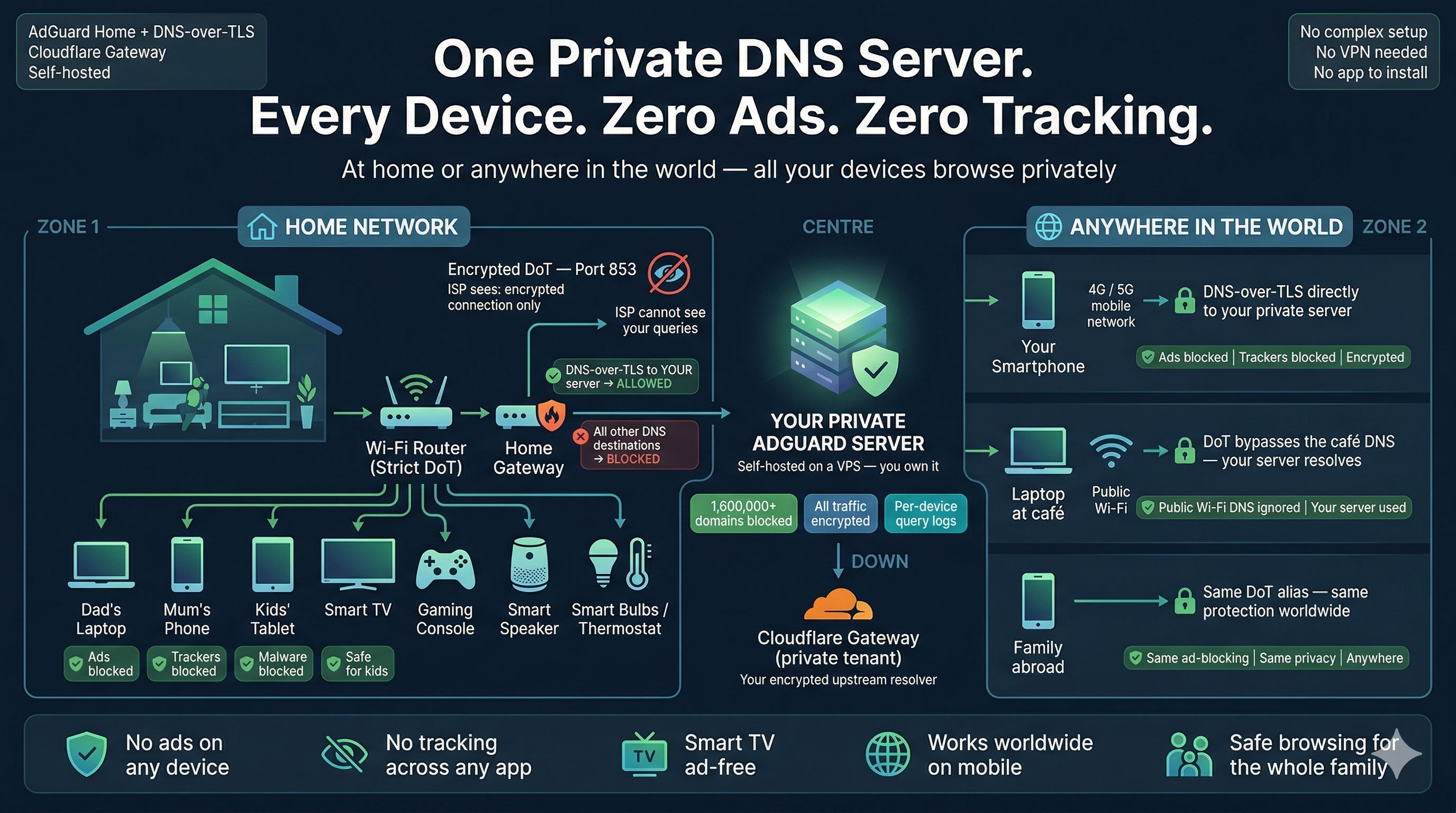
 One self-hosted DNS server. Every device protected — at home and anywhere in the world.
Here is a slightly terrifying, yet fun fact most people do not know: every time anyone in your household opens a browser, your Internet Service Provider (ISP) sees exactly which website they are visiting — before the page even loads. Not because they hacked your network. Not because you did anything wrong. Simply because DNS, the system that translates website names into server addresses, has worked in plain text since 1983. It is essentially like sending a postcard where the mailman (and everyone else along the way) can read exactly who you are writing to.
Every phone, every laptop, every smart TV, and even that “smart” thermostat on your network sends these queries wide open, by default, to wherever your ISP points them. Your ISP logs them. In many countries, they are legally permitted to sell that data. And even where they are not, the data is collected, retained, and occasionally exposed in breaches. Your household’s browsing habits are a goldmine, and right now, you are giving them away for free.
Most people immediately reach for a VPN when they hear this. A VPN definitely helps — but only on the device it is actually installed on, and only while it is running. Your smart TV still leaks. Your kids’ tablets still leak. Your gaming console, your smart speaker — all of them are still shouting plain-text DNS queries into the void. What you actually need is a private DNS resolver that every device on your network is absolutely forced to use, with zero way around it. That is exactly what this guide builds.
The Problem With DNS — And Why It Affects Every Single Device
Think of DNS as the ultimate phone book of the internet. When your daughter’s tablet opens YouTube, it first sends a question: “What is YouTube’s IP address?” That question travels in plain text to a DNS server — usually one controlled by your ISP. The ISP answers, logs the query, and the tablet connects. This happens thousands of times per day across every device in your home.
The real kicker? The problem is not just your ISP. Smart TVs, gaming consoles, and countless IoT devices have DNS servers (like Google’s 8.8.8.8) hardcoded directly into their firmware. They completely ignore whatever “safe” DNS you set up in your router. Your network settings are basically a polite suggestion they choose to ignore. This is why simply changing the DNS server in your router does not fix the problem for every device — those gadgets are not listening to your router in the first place.
There is also the advertising angle. Every unblocked DNS query for an ad server, a tracking pixel, or a telemetry endpoint is a door left wide open for content you never asked for. An ad blocker extension helps on your browser, sure. But it does absolutely nothing for your smart TV’s built-in ad system, your phone’s background telemetry, or the analytics your IoT devices constantly beam home.
The architecture in this guide solves all of this at the network level, before any content loads, for every device simultaneously.
What You Are Actually Building
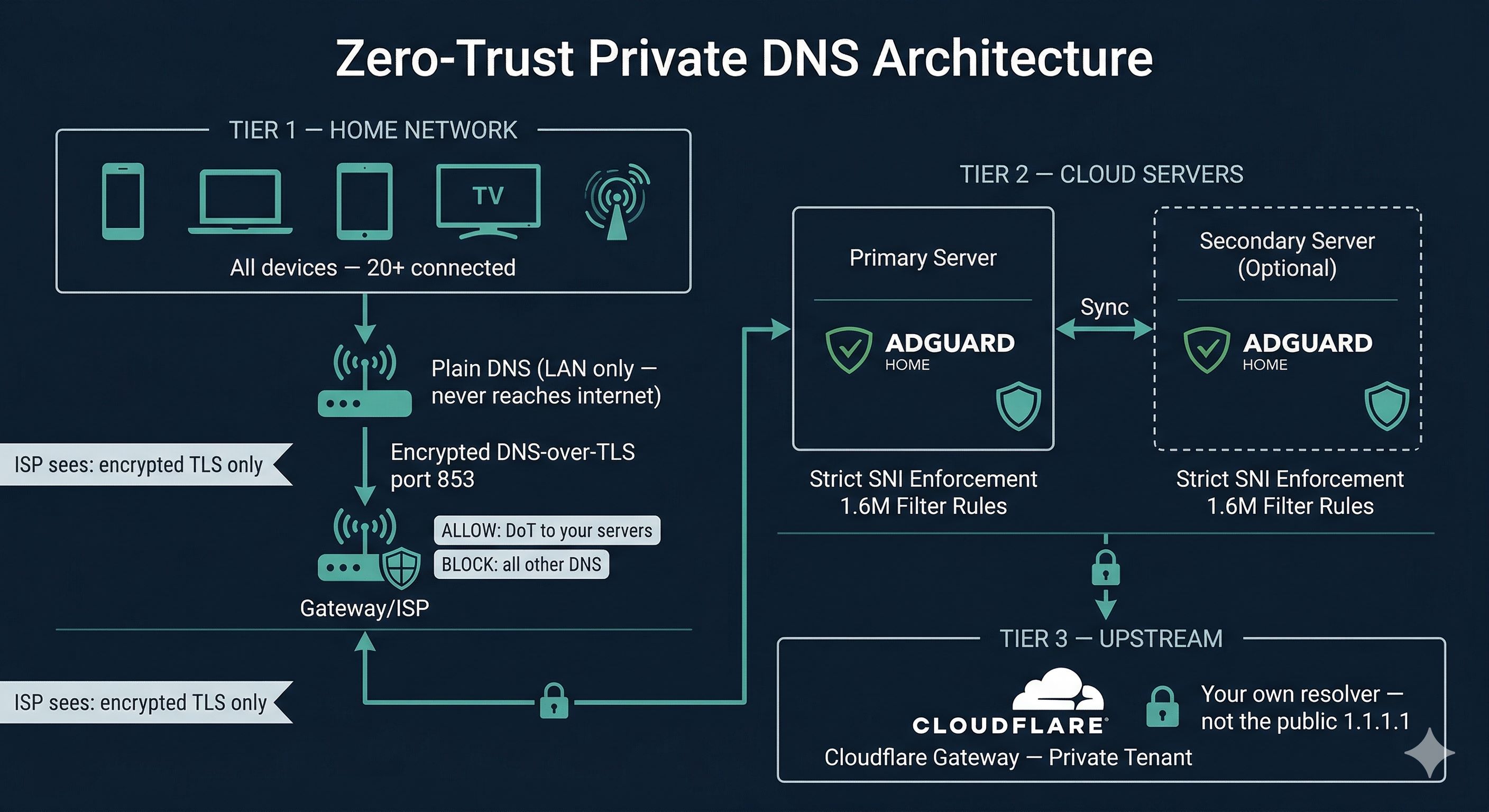
We are creating a three-layer defense system. At the top, Cloudflare Gateway acts as your private upstream DNS resolver — your own isolated VIP tenant, completely separate from the public 1.1.1.1 service. In the middle, AdGuard Home runs on a cloud server you control, wielding 1.6 million filter rules to ruthlessly crush ads and enforce strict per-device access control. At the bottom, your home router acts as the bouncer, forcing every device — yes, even the ones with hardcoded DNS — through your secure tunnel and nowhere else.
The result is a network where no device can go rogue. A smart TV trying to use Google’s DNS gets its query silently dropped by your router firewall. A phone app with a hardcoded resolver hits the same brick wall. Every device, regardless of its firmware or stubborn settings, resolves DNS through your AdGuard instance, blocking ads and trackers before the connection is even established.
On top of that, every single DNS query leaving your home is wrapped in an encrypted TLS tunnel — DNS-over-TLS (DoT) on port 853. Your ISP sees an encrypted connection to your server IP. Nothing else. No domain names, no query history, no embarrassing browsing patterns.
Protection That Follows You: At Home and On the Go
One of the coolest details about this setup is that it is not tethered to your living room. Each device gets a unique DNS alias — something like myphone.dns.yourdomain.com. When you configure that alias as the DoT server directly on your phone, you get the exact same ad-blocking, filtering, and encrypted DNS wherever you are — whether you are on mobile data, sipping coffee on a public Wi-Fi network, or travelling abroad.
There is no clunky VPN to connect. There is no battery-draining app to run. DNS-over-TLS is built natively into Android, iOS, and most modern operating systems. You point it at your alias and it works quietly in the background, acting as your personal bodyguard for every DNS query your phone makes.
A laptop at a coffee shop configured with your DoT alias will bypass the café’s sketchy DNS entirely. A family member’s phone abroad resolves through your server with the same filtering rules as if they were sitting on your home couch. The protection follows the device, not the network.
What Your ISP Can — and Cannot — See After This Setup
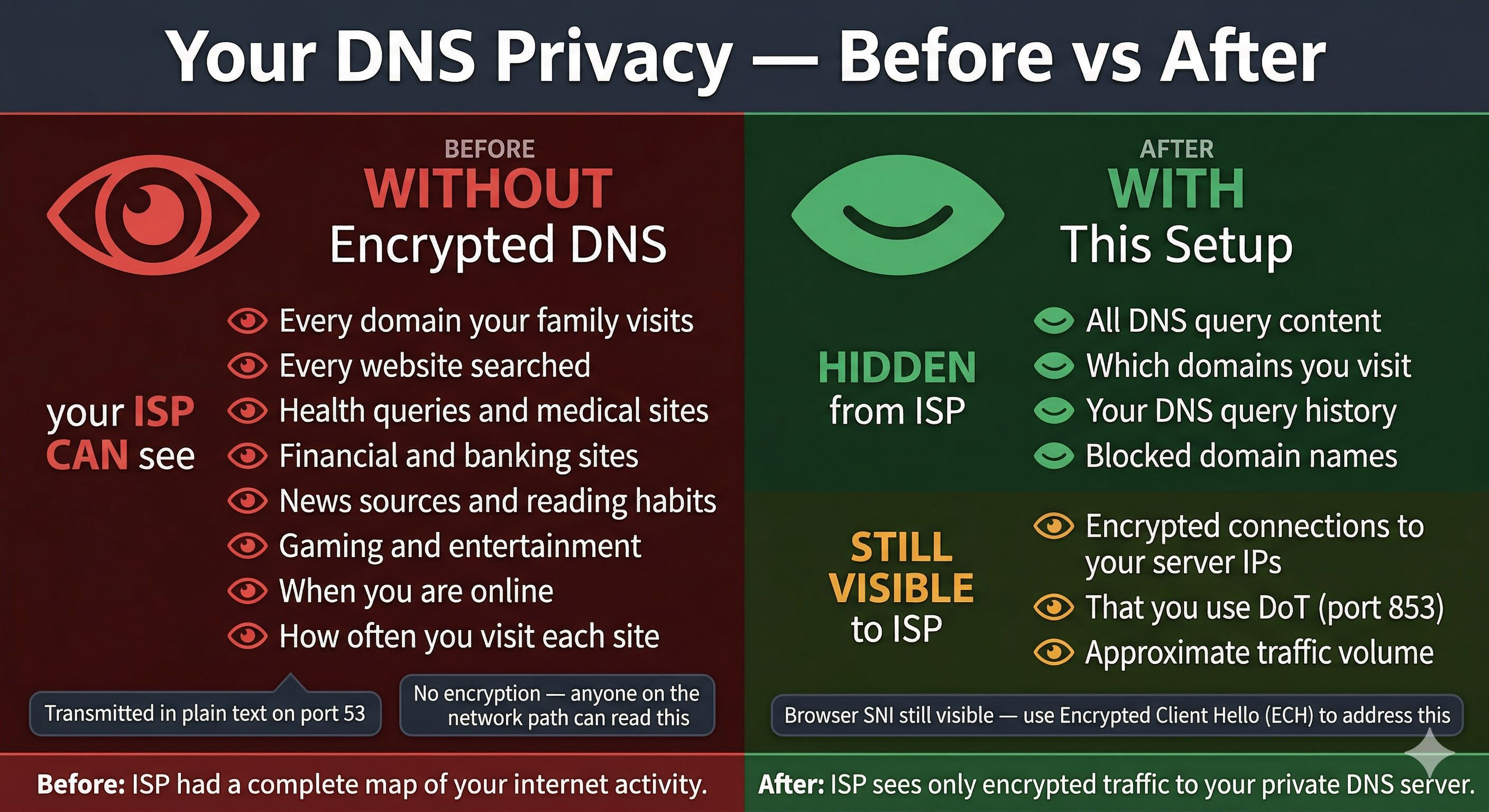
The difference is night and day. Without this setup, your ISP can paint a startlingly accurate picture of your life: the domains your family visits, when they visit them, how often, and from which devices. They can infer health interests, financial behaviour, and political leanings from DNS data alone — without ever seeing the actual content of a single web page.
After this setup, that window slams shut. They see one thing: an encrypted TLS connection to your server IP on port 853. No domain names. No query timing patterns that reveal individual sites. No history to mine and sell.
To be perfectly transparent, there is one caveat worth mentioning. When your browser connects to a website, it includes the site’s hostname in the TLS handshake (called Server Name Indication, or SNI), and that remains visible to your ISP separately from DNS. The modern solution to this is Encrypted Client Hello (ECH), which modern browsers and Cloudflare-backed sites already support. But that is a discussion for another day. For DNS privacy specifically, this setup is absolute lock-and-key.
The “Bouncer” at the Door: How Per-Device Control Works
One of the most elegant aspects of this architecture is how it handles per-device access control without forcing you to install buggy software on the devices themselves. When a device connects to your AdGuard server over DoT, it presents a Server Name Indication — the subdomain alias it is using. AdGuard reads that SNI value and uses it as the device’s VIP pass.
If the SNI does not match any registered device alias, the connection is slammed shut at the TLS layer before AdGuard even processes a DNS request. Internet scanners probing your server hit this wall continuously — they connect, present whatever random SNI they have guessed or left empty, and are refused instantly.
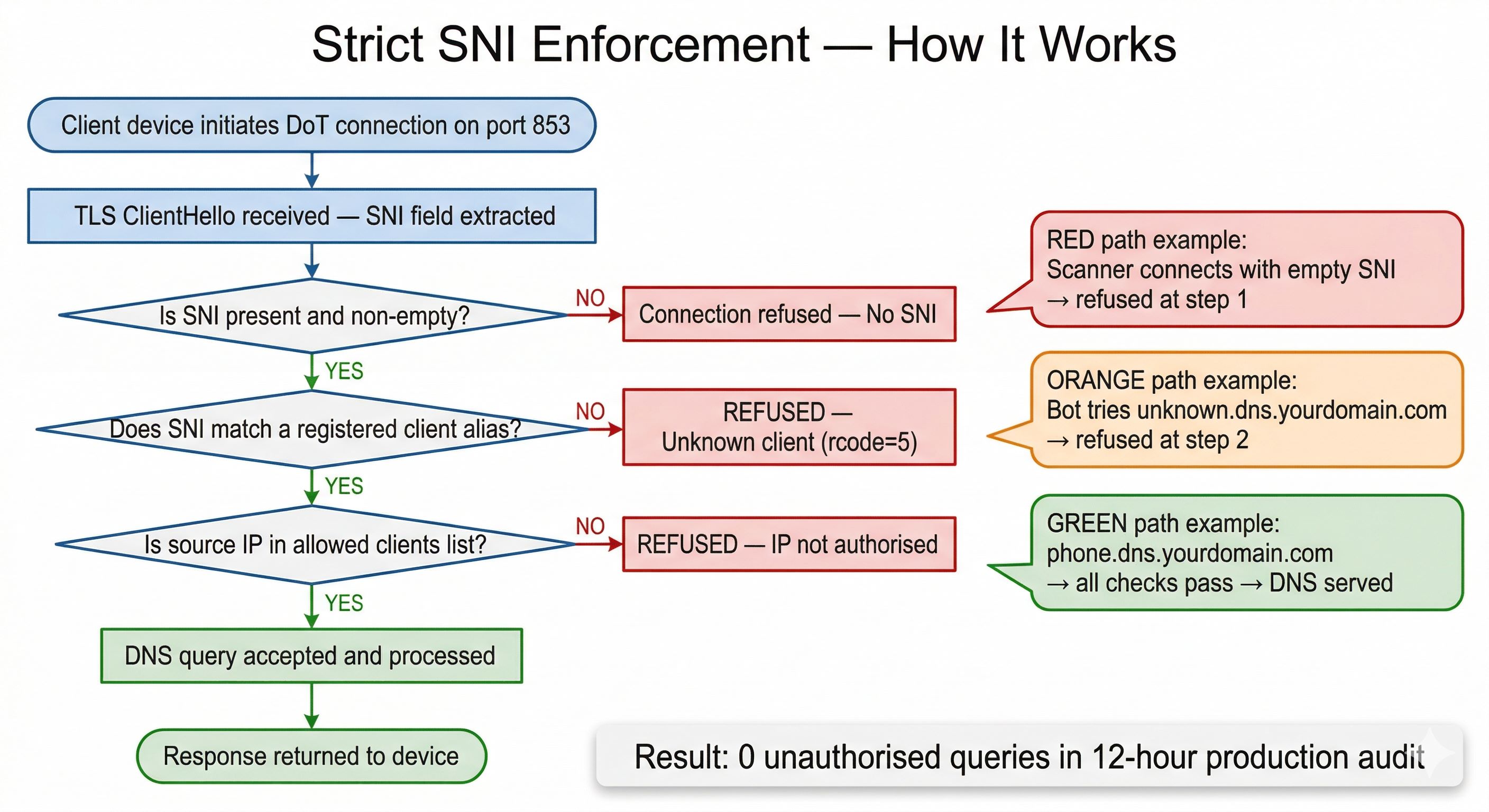
Your device aliases — phone.dns.yourdomain.com, tv.dns.yourdomain.com, laptop.dns.yourdomain.com — act as a brilliant second layer of access control. Even if a malicious bot discovered your server’s IP, they would need to know a valid, registered alias to make any DNS queries. The bare domain is intentionally a dead end. Any probe of it receives a certificate error immediately.
What It Actually Blocks — Every Single Day
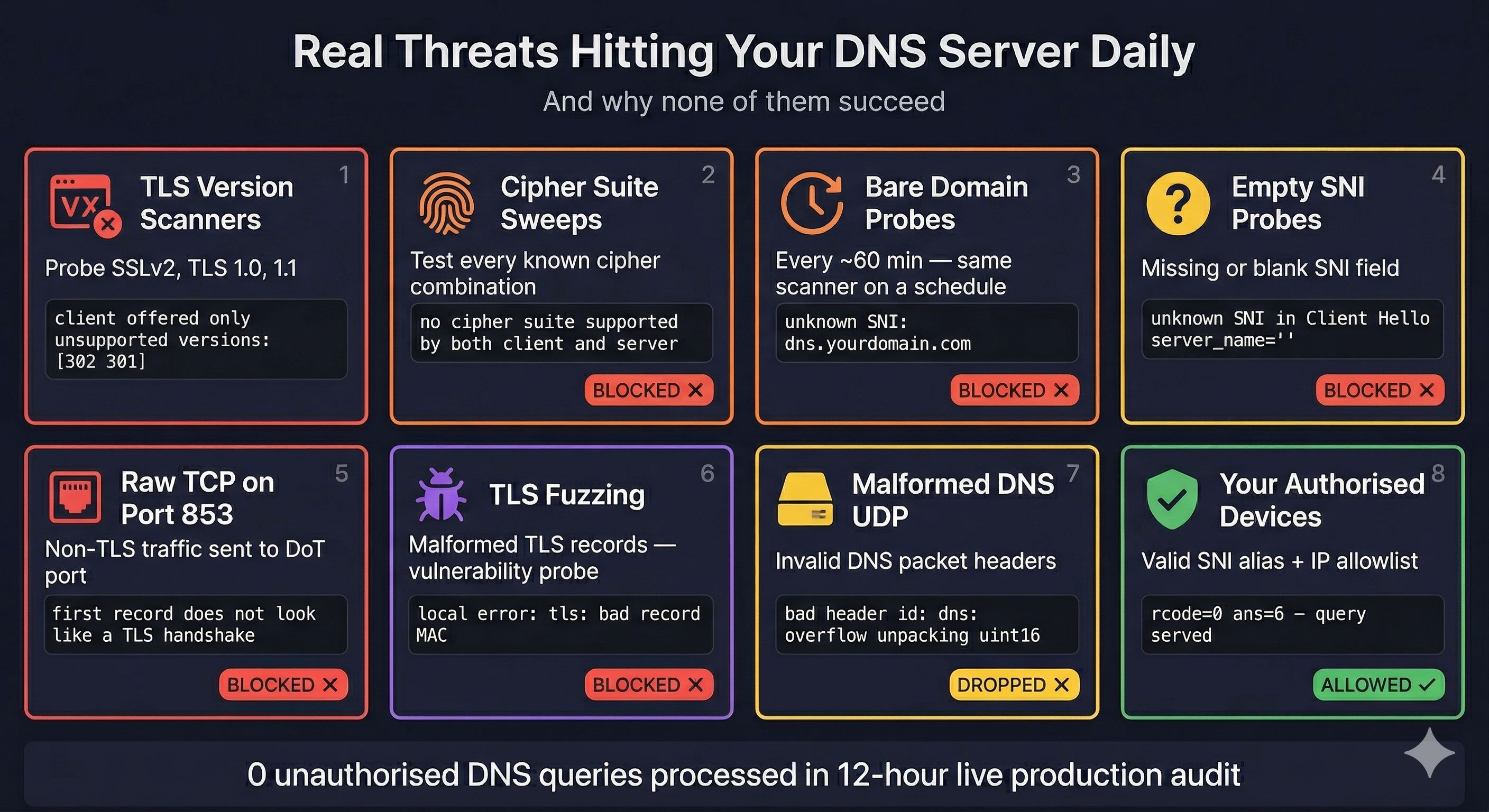
Once your server has a public IP address, internet scanners will find it within minutes. It is the wild west out there. Automated services continuously probe every IP on the internet, testing TLS configurations, looking for open resolvers, and checking for known vulnerabilities. You will see legacy TLS version scanners, cipher suite sweeps, and bare-domain DoT probes arriving on a precise automated schedule.
Thanks to our strict SNI enforcement, every single one is blocked before it reaches the DNS layer. The scanner never gets to make a DNS query. It does not even find out what software is running on your server.
In a 12-hour live production audit of this exact architecture, zero unauthorised DNS queries slipped through. The logs showed a barrage of continuous scanner attempts, TLS probes, and protocol fuzzing — all rejected flawlessly before they could accomplish anything.
The Router Firewall — The Safety Net That Catches Everything Else
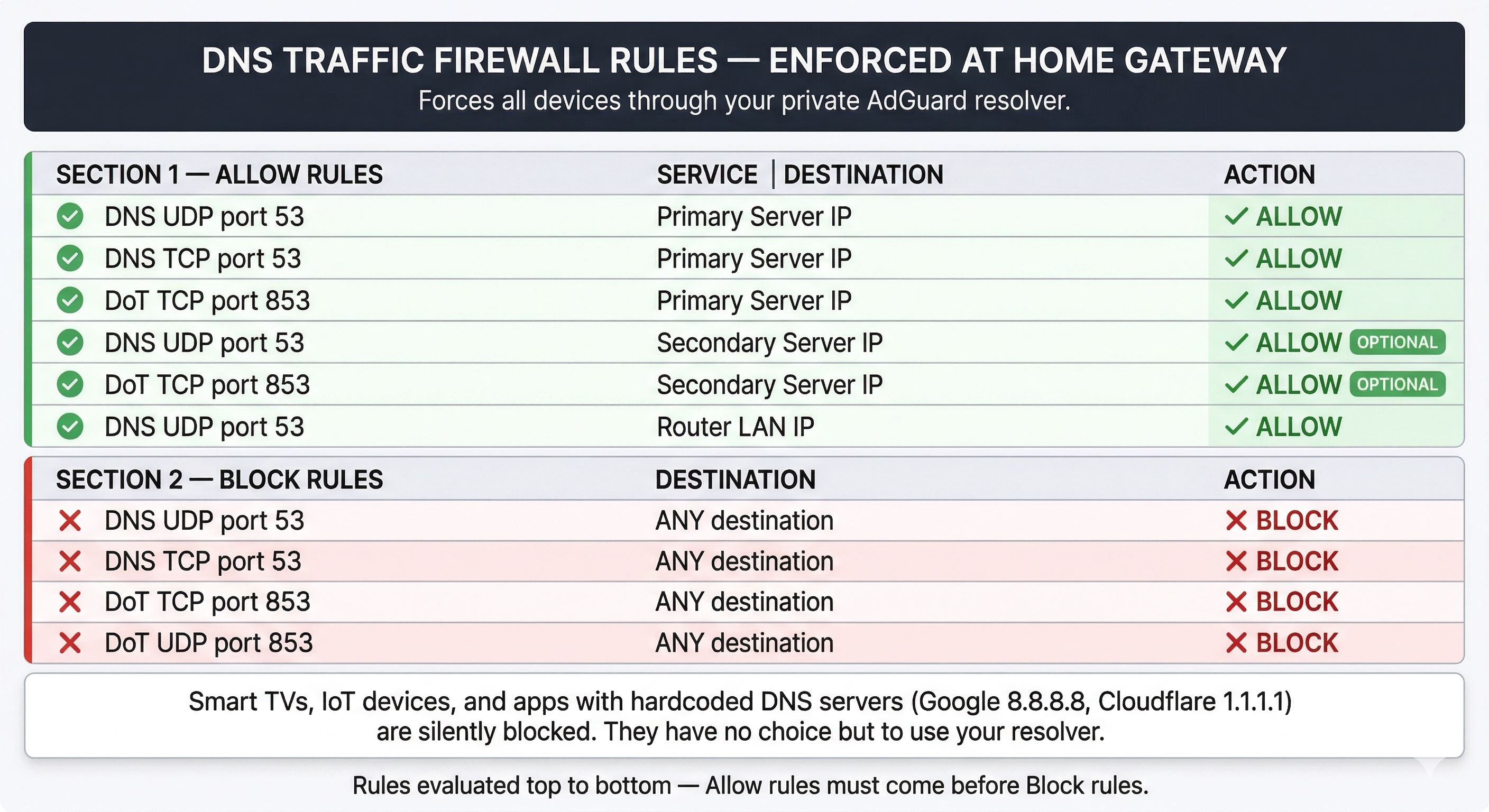
The firewall configuration on your home gateway router is what turns this from a “pretty good idea” into a genuinely bulletproof arrangement. The rules are straightforward: explicitly allow DNS and DoT traffic only to your server IPs, and mercilessly block everything else. The order matters here — your allow rules must come before the catch-all block rule at the bottom, or you will accidentally block your own traffic!
When a stubborn smart TV with 8.8.8.8 hardcoded in its firmware tries to phone home, it does not get an error message. Its DNS query hits your block rule and is silently dropped into the abyss. The device, having nowhere else to send the query, eventually gives up and falls back to the DNS the network explicitly provides — which is your secure AdGuard server. Checkmate.
This is the magical layer that closes the gap VPNs leave wide open. A VPN on your phone protects your phone. Your router firewall protects every device in the house simultaneously, including the pesky ones you cannot install apps on.
Prerequisites: What You Need Before You Start
The setup requires a few things in place before you begin. The good news? None of them are expensive or overly complicated. Having these ready will make your installation a breeze from the very first step:
- A Domain Name: Think of this as your server’s VIP pass. Any registrar works (a standard
.comruns about $10–$15/year). You will need to manage this through Cloudflare DNS, which means pointing your nameservers to a free Cloudflare account. - A Cloudflare Account (Free Tier): This free account is the powerhouse that gives you the Zero Trust Gateway resolver, API access for your SSL certificates, and DNS management.
- At Least One Cloud Server (Linux): You do not need a beast of a machine. A modest setup (1 vCPU, 1 GB RAM) from providers like Hetzner, DigitalOcean, or Vultr works perfectly for a household. Pro Tip: Consider a second server for automatic failover. If your primary node takes a nap, the backup keeps your household’s internet running seamlessly!
- Docker Installed: Docker needs to be running on your cloud server(s) to easily host the AdGuard Home container without muddying up your base system.
- A Compatible Home Router: Your router acts as the local enforcer. It must support DNS-over-TLS (DoT) natively, or you can use flexible third-party firmware like OpenWrt.
The Setup in Brief
The full step-by-step technical guide — covering every command, configuration file, and optional automation script — is available as a PDF linked below. This post is meant to explain the “why” and “how,” and help you decide whether this is worth building. The PDF is your blueprint for when you are ready to get your hands dirty.
At a high level, the process goes like this. You create a private DNS location in Cloudflare Zero Trust and snag your Gateway hostname. You deploy AdGuard Home with Docker on your server and configure it to use that Gateway as its upstream over DoT. You issue a wildcard SSL certificate for *.dns.yourdomain.com using Certbot — the wildcard only, not the bare domain. You enable strict SNI checking in AdGuard’s config file. You add a named client entry for each device with its unique subdomain alias. You block port 53 at your cloud provider’s firewall. And finally, you configure your home router with the allow and block firewall rules we discussed above.
Once it is running, adding a brand new device takes about 30 seconds: one CNAME record in Cloudflare, one client entry in AdGuard, and configuring the device’s DoT setting to its new alias. No software to install. No VPN client to configure. The device is protected from that point forward, whether it’s on your couch or halfway across the globe.
Is This Actually Worth the Effort?
Running self-hosted infrastructure definitely takes some initial setup time and occasional attention. However, certificate renewal is fully automated with a daily cron job. Filter lists update on their own. The servers need periodic system updates, but nothing beyond what any standard Linux server requires.
What you get in return is incredibly real and tangible. Your ISP’s view of your household’s internet activity goes from a creepy, detailed log of every site you visit to an unbreakable encrypted connection to a single IP. Every device on your network — especially the ones you cannot install anything on — gets ad blocking and malware filtering baked right into the DNS level. Your phone gets that same premium protection wherever it connects. Your DNS traffic goes to a resolver you personally own and control, not one managed by your ISP or a commercial provider wanting to mine your data.
For anyone who takes network privacy seriously, or who is simply exhausted from seeing ads on a smart TV with no straightforward way to block them, this project is absolutely worth building.
The complete technical implementation guide — including every single configuration step, command, and optional automation script — is available as a PDF below.
Visit: Zero-Trust Private DNS Architecture — Implementation Guide
Written by Saugata Datta — DevOps Manager and cloud infrastructure specialist. More guides on self-hosted infrastructure, cybersecurity, and DevOps automation at technochat.in.
 Licensed under CC BY-ND 4.0 International
The Ultimate Command Center for AdGuard Home Power Users
The Problem: "Friction & Context Switching" Whether you run a single AdGuard…
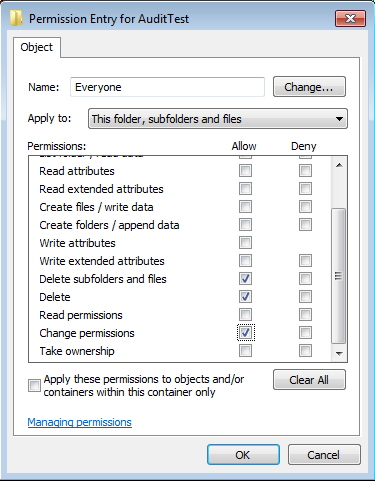
Set File System Auditing via PowerShell
For last few days, I was trying to figure out how to…

NTFS Permission issue with TAKEOWN & ICACLS
Most of us using TAKEOWN or ICACLS for taking ownership from command…
From Tunnel to Cloud: The 2026 Strategy Guide to Self‑Hosting vs Third‑Party VPN
In 2026 the boundary between "VPN" and "personal cloud" is fuzzier than…