Whenever you try to run any script, batch file or an executable from UNC path, it’s opening a Security Warning. Actually this will prevent you from running any application from network path.
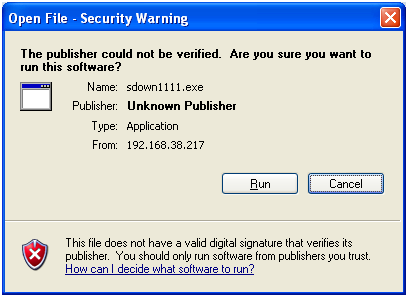
If you are planning to deploy anything via script from network path, this security warning will prevent you from executing that.
But you can easily manage it from Domain Controller via Group Policy on Computer or User Configuration as per your requirement. Apply following GP Settings to disable this warning.
User/Computer Configuration>Administrative Templates>Internet Explorer>Internet Control Panel>Security Page
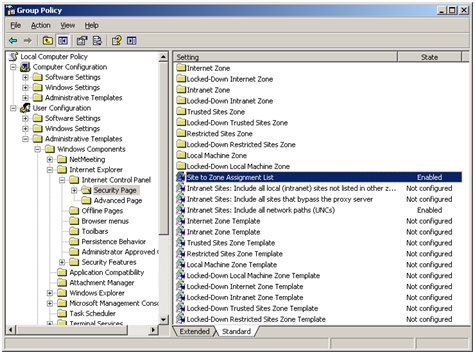
Then, double click on “Site to Zone Assignment List” and the following window will appear.
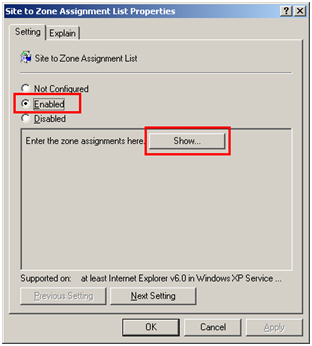
After Enable click Show… button and add the source IP and its value on that field.
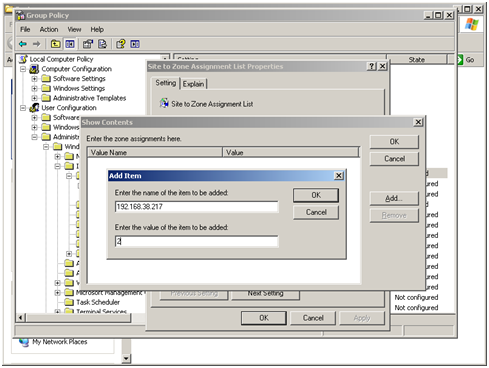
Note: Value 1 for Intranet zone, value 2 for Trusted Sites zone, value 3 for Internet zone and value 4 for Restricted Sites zone.
After applying this GP setting you can run any script, batch file or executable file form that IP without any security warning.
On the same way you can add any site any site (FQDN)/IP to the Intranet Zone, Internet Zone, Trusted Site or restricted sites.
 Licensed under CC BY-ND 4.0 International

Stryker Confirms Massive Wiper Strike — Thousands of Devices Erased in Alleged Iran-Linked Operation
Stryker, the global medical technology company, confirmed on March 11, 2026, that…

AI as Tradecraft: How Threat Actors Operationalize Artificial Intelligence
Organizations are facing a subtle but powerful shift: adversaries are not inventing…

Aura Exposed: When 900,000 Marketing Contacts Turned Into a Security Crisis
Aura, the consumer digital safety company known for identity protection and fraud…

Claude’s New Release — Supercharged Multi‑Agent Code Review for Every PR
Good code review is getting harder as teams ship more code. Claude’s…
THANK YOU!! 🙂
Thank you for taking the time to post this info.
No lucky.
Dialog still appears in Windows Server 2008 R2….
I have just tested it in my XP system, and it’s working fine, Will try it on 2008 soon, and will give u a update..
Hopefully it should work.
Add same on Computer & Users both, then GPUPDATE /FORCE or restart ur system, Hope it will work.
Thanks
Saugata
Worked perfectly, thanks!
Thanks 🙂
I have the same problem on 2008 R2 – setting the default group policy didn’t change anything…
I didn’t tried this on Win 2K8, so I am not sure, If you can explain you problem in details, then I might help you.