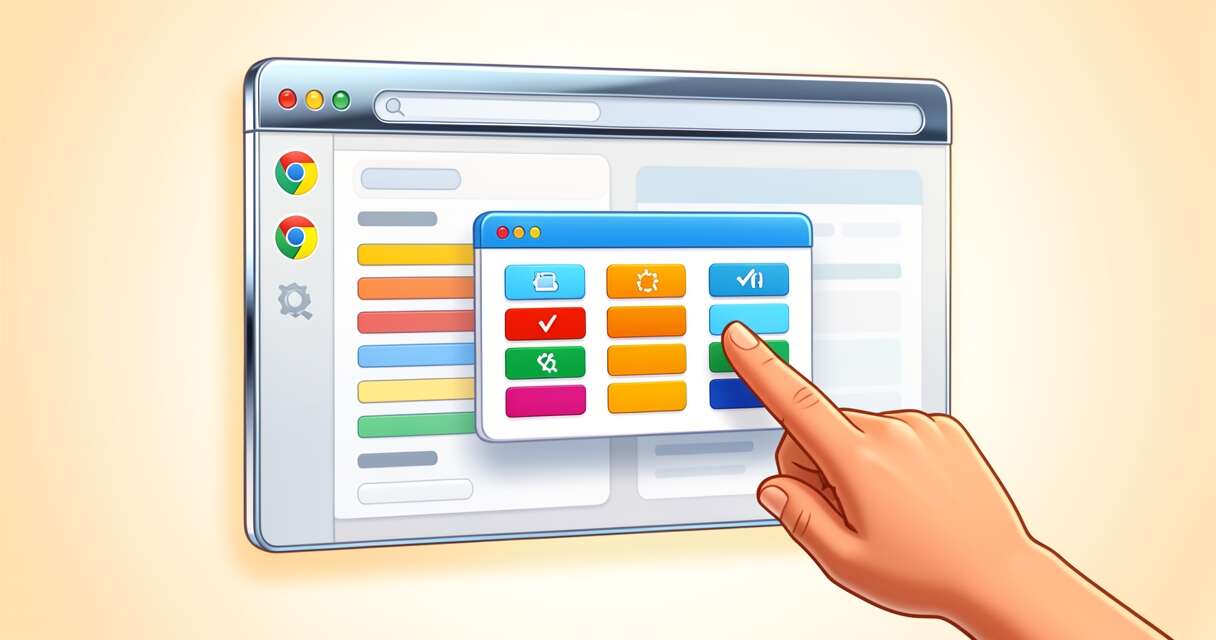
Chrome is getting another nudge toward becoming the home for Google’s AI toolbox. This spring Google introduced “Skills,” a way to save Gemini prompts inside the browser so common queries and workflows can be retriggered with a click. Rather than retyping or copy‑pasting a prompt each time you want Gemini to perform a task, Skills let you store and reuse those instructions across tabs and devices, speeding up repeatable tasks and making the browser feel more like a personal automation layer for web‑centric work.
What Skills are and how they work
Skills are essentially saved Gemini prompts that you create from chat history or compose directly and then store in Chrome. When you need a saved Skill, you can open Gemini in Chrome and type a forward slash (/) or click the plus button to surface your library of Skills; selecting one runs the prompt in the context of the current tab and any other tabs you select. Skills execute immediately but follow the same safety and confirmation checks as manual prompts — actions that would send an email or add a calendar event still require explicit confirmation before proceeding. You can also edit saved Skills, letting you refine how they behave without rebuilding the prompt from scratch.
Practical examples and early use patterns
- Recipe tweaks: run a Skill that calculates protein or macronutrient substitutions from a recipe page.
- Document summarization: create a reusable prompt to produce concise takeaways from long articles or reports.
- Shopping comparisons: pull and align product details from multiple tabs into a side‑by‑side comparison table.
- Data extraction: an easy way to convert page content into a structured list or CSV.
Google will also seed a Skills Library with ready‑made prompts covering productivity, recipes, shopping, budgeting, and other common tasks. Users can add those prebuilt Skills to their collection and customize prompts for their needs — for instance, tightening a summary prompt to focus on pros/cons or switching tone for marketing copy.
Interface and model choices
When invoking a Skill you still choose which Gemini model to run. Chrome surfaces both faster variants and higher‑quality “Pro” options; fast models produce results more quickly but may be more error prone, while Pro models take longer and aim for improved accuracy. Skills don’t introduce new capabilities to Gemini so much as remove friction: the same tasks that were possible before are now a single click away.
Privacy, security, and permissions
Google says Skills adhere to the same security boundaries as regular Gemini interactions. That means Skills that involve side effects — sending messages, making calendar changes, or accessing certain data — will prompt for confirmation before doing anything sensitive. Because Skills can access multiple tabs, users should be mindful of what data the prompt asks Gemini to read and how results might be combined. The feature is tied to a signed‑in Google account and, on desktop, saved Skills sync across devices for the same account, which simplifies continuity but also centralizes saved prompts under Google’s account infrastructure.
Why developers and power users should care
For power users, Skills signal a move toward lightweight, browser‑native automation. Instead of building a separate script or extension to replicate a repeatable workflow, users can capture an effective prompt and reuse it instantly. This lowers the barrier to creating custom assistants for domain‑specific jobs like research triage, content repurposing, or ecommerce comparisons. For developers and extension makers, Skills could change how integrations are designed — third‑party tools might focus more on producing consumable page content and less on shipping standalone automation when users can orchestrate actions via Gemini Skills.
Limitations and initial rollout
Skills are rolling out to Chrome on desktop and are available by default for installs with the browser language set to US English. No paid AI plan is required to access the feature. That initial language and platform limitation means international users or non‑desktop contexts may not see Skills yet. And because Skills are a convenience layer rather than a new capability, the feature’s usefulness depends on how accurately Gemini interprets prompts and how reliably it can access tab content. Users should test Skills for edge cases and verify results, especially for workflows that act on external services.
What this means for the browser AI landscape
Chrome’s Skills are another example of embedding AI directly into a browser’s UX to reduce friction and increase daily utility. Competitors in the browser and AI assistant space are also pursuing tight integrations, but Google’s advantage is twofold: Gemini’s ties to Google Search and Chrome’s massive install base. If Skills make routine tasks measurably faster, they could increase everyday use of Gemini inside Chrome and raise the bar for rival browsers and assistant features that aim to offer similar, repeatable workflows.
Conclusion
Skills don’t reinvent what Gemini can do, but they streamline how you use it. By letting users save, edit, and instantly run prompts across tabs and devices, Chrome turns recurring Gemini queries into first‑class browser tools. For anyone who leans on AI for summarization, comparison, or repetitive web tasks, Skills offer an overdue shortcut — provided you’re working in the supported language and comfortable with the sync and permission model that comes with storing prompts in your Google account.
 Licensed under CC BY-ND 4.0 International

Google’s Big Bet: Up to $40 Billion Headed to Anthropic
Google is preparing to invest a headline-grabbing sum in Anthropic — at…

OpenAI Debuts Shared Workspace Agents to Automate Team Handoffs
OpenAI has introduced a new class of ChatGPT tools called shared workspace…

Accenture and WaveMaker’s bet on mid-market AI modernization
Accenture and WaveMaker have forged a strategic collaboration aimed at helping mid-market…

Anthropic and Amazon Expand Partnership, Securing Up to 5GW of Compute for Claude
Anthropic announced on April 20, 2026, a major expansion of its collaboration…

Anthropic’s Claude Opus 4.7 Arrives in Amazon Bedrock — Smarter Coding, Vision, and 1M-Token Context
Amazon Bedrock now offers Anthropic’s Claude Opus 4.7, a major upgrade aimed…

Google’s Quick Share Gains Tap-to-Share Mode with Pixel 11
Alongside the Pixel 11 announcement, Google has upgraded Quick Share with a…

Google Makes AI Your New Office Intern with Workspace Intelligence and Gemini
At its Cloud Next event, Google unveiled a suite of AI upgrades…

When a Private Diary Becomes Evidence: How a Claude Entry Led to Real-World Charges
A single chat entry that a user treated like a private diary…