The Problem: “Friction & Context Switching”
Whether you run a single AdGuard Home instance on a Raspberry Pi or manage a fleet across multiple locations, the daily management experience often feels disconnected.
To simply check if your server is online, pause protection for a quick test, or block an annoying tracker, you have to:
- Stop what you’re doing.
- Open a new tab and type the IP address.
- Log in (every single time).
- Navigate through the UI to find the “Block” button.
It doesn’t seem like much, but it adds up. That tiny bit of friction often means you end up not blocking something because it’s “too much hassle” in the moment.
Unblocking for just ONE device: Need to temporarily unblock a site for your TV but keep it blocked for your kids? You have to remember complex syntax like $client='192.168.1.50' and manually type it out. It’s error-prone and tedious.
The Solution: AdGuard Home Central Manager
AdGuard Home Central Manager is a free Chrome extension designed to eliminate this friction entirely. It transforms your browser into a seamless command center for your ad blocking.
Whether you have one server or ten, the goal is the same: Control everything without leaving your current tab.
ast (0ms UI latency), secure (local encryption), and built specifically for power users who want control at their fingertips.
Download Extension: [Link TBD]
Who Is This For?
- The Minimalist: You have one perfectly tuned AdGuard Home server and want instant access to stats and toggles from your toolbar.
- Privacy Advocates: You want to block trackers instantly as you browse, using the Right-Click context menu.
- HomeLab / SysAdmins: You manage multiple instances (Home, Office, Parents) and need to sync rules across them instantly.
Key Features Deep Dive
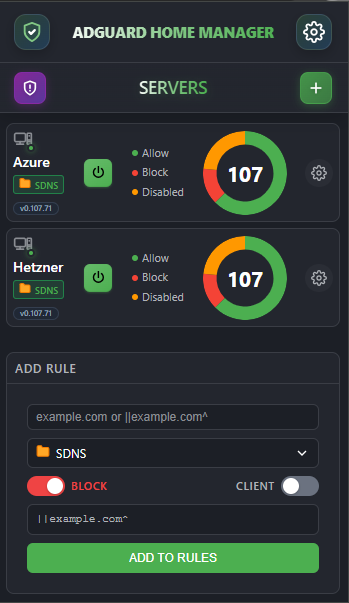
1. Multi-Server Dashboard (The “Mission Control”)
Get a text-free, visual status of your entire network in one glance.
- Visual Health Check: Instant Green/Red dots show you if a server is online or offline.
- Stats at a Glance: Donut charts visualize the ratio of Blocked vs. Allowed rules.
- Quick Toggles: Turn protection ON or OFF globally for any server with a single click.
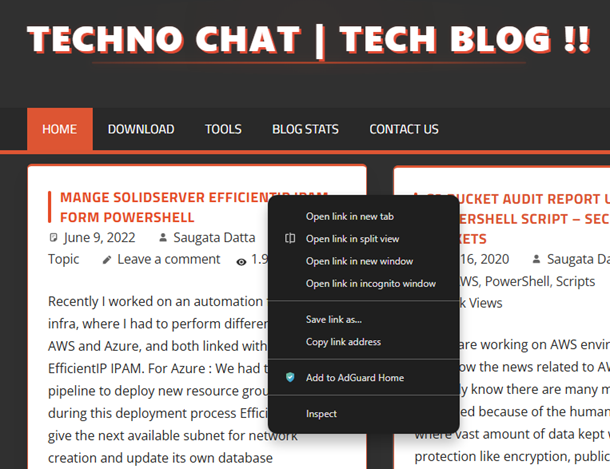
2. Context Menu Integration (The “Killer Feature”)
This is the biggest workflow booster. You’re browsing a site and see an annoying ad or tracker?
Right-click -> “Add to AdGuard Home”.
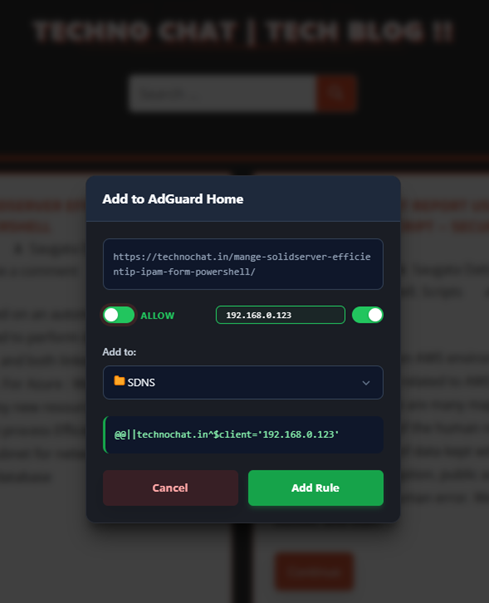
A beautiful, dark-themed modal appears right on the page. You can:
- Block/Allow the domain.
- Pick the Server (or all of them via Groups).
- Target a specific client (see below).
- Confirm.
Smart Conflict Detection:
If you try to block a domain that is already allowed (or vice-versa), the extension warns you immediately, saving you from troubleshooting headers later.
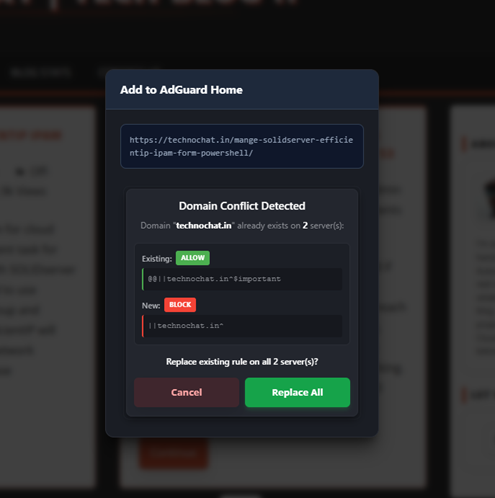
Done. You never left the website.
3. Client-Specific Targeting
Want to unblock YouTube for your Smart TV but keep it blocked for the kids’ tablets?
The extension simplifies AdGuard’s complex client syntax. Just toggle “Other Client”, enter the IP (192.168.1.50) or Client ID, and the extension automatically formats the rule as ||youtube.com^$client='192.168.1.50'.
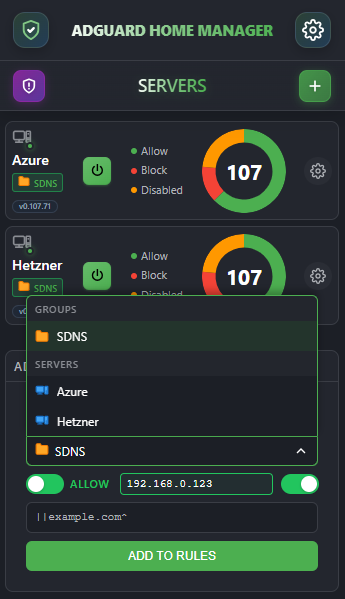
4. Group Sync & Management
Stop adding the same rule to 5 different servers manually.
- Create Groups: Tag servers as “Home”, “Office”, or “Cloud”.
- One-Click Sync: Add a rule to the “Home” group, and it automatically syncs to every server in that group.
- Auto-Conflict Resolution: If you try to Block a domain that is already Allowed on a server, the extension warns you immediately.
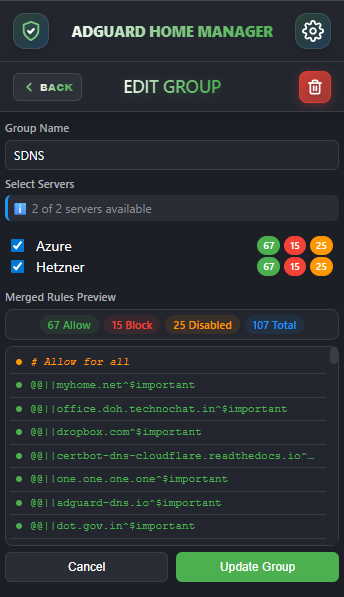
Step-by-Step Guide: Getting Started
Setting up your command center takes less than 2 minutes.
Step 1: Install & Pin
After installing the extension from the Chrome Web Store:
- Click the Puzzle Piece icon in your Chrome toolbar.
- Find AdGuard Home Manager.
- Click the Pin icon. Now it’s always one click away!
Step 2: Add Your First Server
Click the Plus (+) button on the dashboard to open the connection wizard.
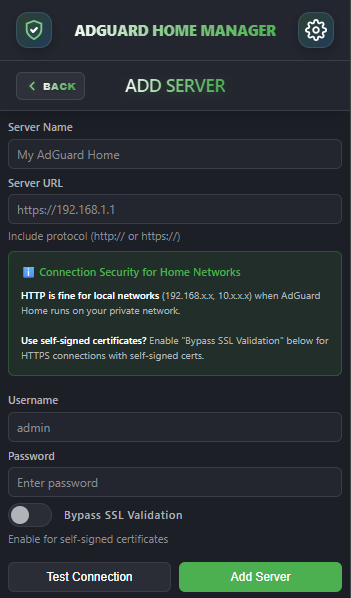
- Server Name: Give it a friendly nickname (e.g., “Home Pi”). The extension will auto-generate a cool 7-char tag (e.g.,
HOME-PI) for the UI. - URL: Enter the full address.
- Examples:
http://192.168.1.50:80orhttps://adguard.mysite.com.
- Examples:
- Auth: Enter your AdGuard Home username and password.
- Note: If you use a self-signed SSL certificate (common for local IPs), check usage guide for allowing insecure content.
- Test Connection: Crucial step! Click “Test” to ensure the extension can talk to your API. You’ll get a success toast if it works.
Step 3: Manage & Monitor
Once saved, your server card appears!
- The Dot: Green means connected. Red means unreachable.
- Add Rule: Click the “+” inside the server card to add a rule specifically to that server.
- Settings: Click the gear icon to manage Groups, preferences, or view the “About” page.
Security & Privacy (Why You Can Trust It)
We know trust is everything in the self-hosted community.
- 100% Local Storage: We use
chrome.storage.local. Your data never leaves your browser unless it’s talking directly to your server. - Military-Grade Encryption: Your passwords aren’t just stored; they are encrypted using AES-GCM.
- Zero Telemetry: We don’t know who you are, what servers you run, or what sites you block. We collect absolutely zero data.
Conclusion
AdGuard Home Central Manager takes the friction out of networking ad blocking. Whether you have a simple home setup or a complex multi-site network, this tool gives you the visibility and control you’ve been missing.
Try it out today and take back control of your network.
Download AdGuard Home Central Manager (TBD)
 Licensed under CC BY-ND 4.0 International

Anthropic’s Claude Mythos Leak: When Pre-Release Secrets Meet Cybersecurity Risk
Anthropic recently found itself at the center of an avoidable but consequential…

Aura Exposed: When 900,000 Marketing Contacts Turned Into a Security Crisis
Aura, the consumer digital safety company known for identity protection and fraud…

Introducing the Azure Skills Plugin: Practical Azure Workflows for Coding Agents
The Azure Skills Plugin brings curated Azure expertise and an execution layer…

AstraZeneca Allegedly Targeted by LAPSUS$ — Claims of a 3GB Internal Data Dump
A known hacking collective identifying as LAPSUS$ has posted claims that it…